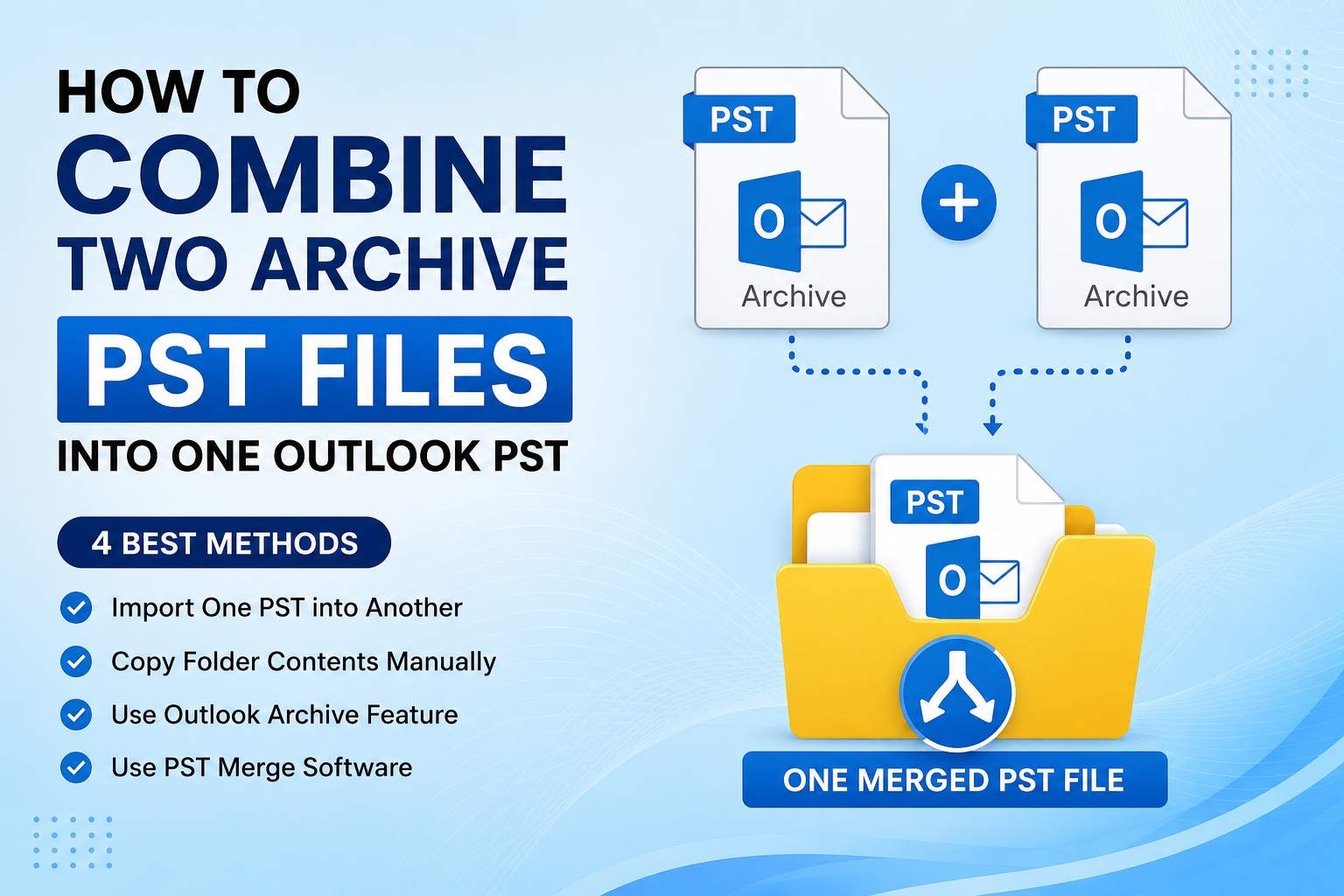
Managing multiple archive PST files in Outlook can become difficult over time. Many users create separate archive files every year or after changing computers, resulting in scattered emails, contacts, calendars, and other mailbox items. Searching through multiple archive PST files is time-consuming and makes mailbox management complicated.
If you are wondering how to combine two archive PST files into one, this guide explains the top 4 methods to merge Outlook archive PST files. It covers both manual techniques and a professional solution that helps merge PST files without data loss while maintaining the original folder hierarchy.
Why Do Users Need to Combine Two Archive PST Files?
Before learning how to merge archive PST files, it's important to understand why users combine them in the first place.
1) Multiple Archive Files Created Over Time
Outlook automatically creates new archive PST files after different archive operations, leaving users with several PST files.
2) Switching to a New Computer
When migrating Outlook to another PC, users often import old PST files separately, creating multiple archive files.
3) Different Backup Files
Organizations and individuals usually maintain monthly or yearly Outlook backups that later need to be merged.
4) Easier Email Management
Keeping everything inside one PST file makes searching, organizing, and managing emails much simpler.
5) Reduce Outlook Complexity
Opening several archive PST files increases mailbox complexity and can slow down Outlook performance.
These are the most common reasons why users look for a way to combine archive PST files with other files.
4 Best Methods to Combine Two Archive PST Files
If you're looking for the easiest way to merge Outlook archive PST files, these methods can help.
Import One PST into Another
Copy Folder Contents Manually
Use Outlook Archive Feature
Use PST Merge Software
Let's discuss each method briefly.
Method 1: Import One Archive PST into Another
Outlook includes an Import/Export Wizard that allows users to import one PST file into another existing Outlook profile.
Pros
No additional software required.
Suitable for small PST files.
Cons
Time-consuming for large archive files.
Risk of importing duplicate items.
Doesn't provide advanced merge options.
Method 2: Copy Mailbox Folders Manually
Users can open both archive PST files in Outlook and manually drag folders from one archive into another.
Pros
Easy for a few folders.
No external application required.
Cons
Extremely slow for large mailboxes.
Manual work increases chances of mistakes.
Duplicate emails may still appear.
Method 3: Create a New Archive PST
Users can create a new Outlook Data File and copy content from both archive PST files into the new file.
Pros
Creates a fresh consolidated archive.
Keeps original PST files unchanged.
Cons
Requires significant manual effort.
Large mailbox transfers may take hours.
Folder structure can become disorganized.
Method 4: Use Professional PST Merge Software
A dedicated PST Merge Tool by SysTools can automatically combine multiple archive PST files into a single Outlook PST while maintaining the complete folder hierarchy, emails, contacts, calendars, tasks, journals, notes, and attachments.
Pros
Merges multiple archive PST files at once.
Preserves original folder hierarchy.
Removes duplicate items (if supported).
No file size limitation.
Saves considerable time.
Cons
Requires professional software.
Demo versions may have feature limitations.
Note: Before combining archive PST files manually, always create a backup of your Outlook data. Manual methods work well for small archive files but become difficult when handling large PST files containing thousands of emails. If you regularly manage multiple Outlook archive files, using SysTools PST Merge Software provides a faster and more reliable solution. It merges archive PST files while maintaining folder structure, metadata, attachments, and Outlook item integrity without risking data corruption.
Bonus Tips for Combining Archive PST Files
#1 Backup PST Files First
Always keep a copy of both archive PST files before starting the merge process to avoid accidental data loss.
#2 Check PST File Health
Repair corrupted PST files using Outlook Inbox Repair Tool (SCANPST.exe) before merging to prevent errors.
#3 Remove Duplicate Data
If both archive files contain the same emails, contacts, or calendar items, combine multiple PST files without duplicates or use software that supports duplicate handling.
Conclusion
If you need to combine two archive PST files into one, Outlook offers several manual methods such as importing PST files or copying folders. These techniques work for smaller mailboxes but become slow and complicated with large archive files. For users handling multiple Outlook archives, SysTools PST Merge Software offers the most efficient solution by combining PST files safely, preserving folder hierarchy, and reducing manual effort while ensuring complete data integrity.