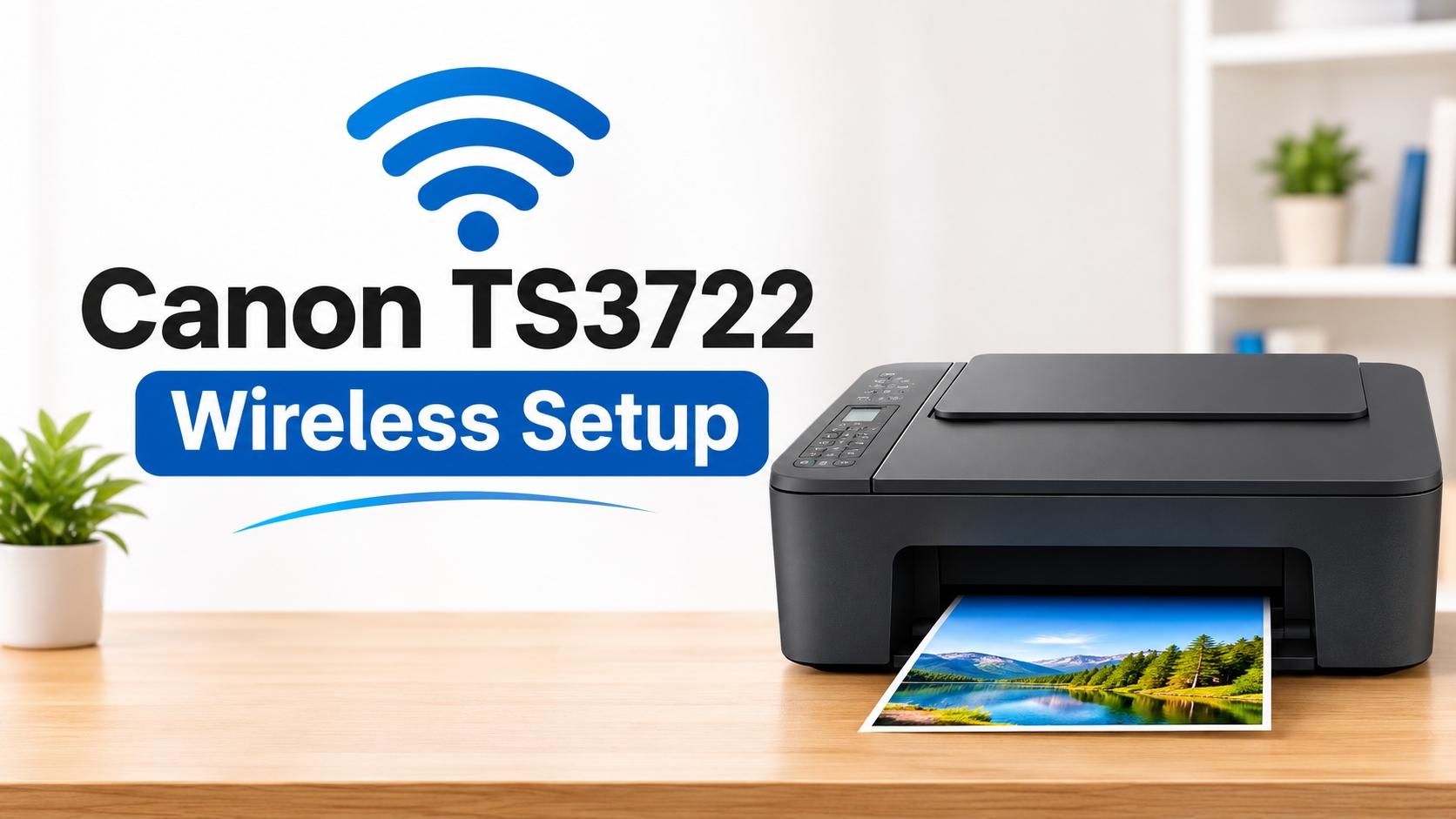
The Canon PIXMA TS3722 is an all-in-one wireless printer designed for home users and small offices. It offers convenient printing, scanning, and copying features while allowing users to print documents and photos without connecting the printer directly to a computer. With its wireless connectivity, you can print from Windows PCs, Mac computers, laptops, smartphones, and tablets.
However, connecting a new printer to a Wi-Fi network can sometimes be challenging. Users may experience difficulties with wireless configuration, driver installation, network detection, or printer connectivity. Understanding the correct installation procedure can help you avoid these problems.
In this guide, we will explain how to complete the Canon TS3722 wireless setup using different methods, install the necessary software, connect the printer to multiple devices, and resolve common wireless connection issues.
1. Prepare Your Canon PIXMA TS3722 Printer
Before starting the wireless installation, make sure your Canon TS3722 printer is properly prepared. Initial preparation helps prevent interruptions during the setup process.
Follow these steps:
Remove the printer from its packaging.
Remove all protective tapes and plastic materials.
Place the printer on a flat and stable surface.
Connect the power cable to the printer and an electrical outlet.
Press the Power button to turn on the printer.
Open the printer cover and install the compatible black and color ink cartridges.
Load plain paper into the rear paper tray.
Check that the printer is ready for wireless configuration.
You should also keep your wireless router nearby. A strong Wi-Fi signal helps establish a stable connection between the printer and your other devices.
Before proceeding, note your Wi-Fi network name (SSID) and password.
2. How to Connect Canon TS3722 to Wi-Fi Using the Canon PRINT App
The Canon PRINT app is one of the convenient ways to configure your Canon TS3722 wireless connection. It allows you to connect your printer using an Android smartphone, iPhone, or tablet.
Follow these instructions:
Turn on your Canon TS3722 printer.
Connect your smartphone to your home Wi-Fi network.
Open Google Play Store or Apple App Store.
Search for the Canon PRINT app.
Download and install the application.
Open the app after installation.
Allow the required permissions.
Select the option to add or register a printer.
Follow the instructions to prepare your printer for wireless setup.
Select Canon TS3722 when it appears.
Choose your preferred Wi-Fi network.
Enter your wireless network password.
Wait for the application to configure the connection.
After completing the process, your Canon TS3722 printer should appear in the Canon PRINT app.
You can now print photos, documents, and supported files directly from your smartphone without using a USB connection.
3. Canon TS3722 Wireless Setup Using the WPS Method
If your wireless router supports WPS (Wi-Fi Protected Setup), you can connect your Canon TS3722 printer without manually entering your Wi-Fi password.
This method is useful for users who want to establish a wireless connection quickly.
Follow these steps:
Turn on your Canon TS3722 printer.
Make sure your wireless router is powered on.
Locate the WPS button on your router.
Prepare the printer for wireless connection using the Wireless Select button.
Wait for the wireless indicator to flash.
Within two minutes, press the WPS button on your router.
Allow the printer to search for the available wireless network.
Wait for the connection process to finish.
Check the wireless indicator to confirm the connection status.
If the wireless indicator remains steady, the connection may have been established successfully.
The exact button sequence depends on the printer's wireless setup procedure. Refer to the official Canon TS3722 manual for model-specific instructions.
If the connection fails, restart your printer and router before trying again.
4. Download and Install Canon TS3722 Printer Drivers
Installing the correct printer driver is important because it allows your computer to communicate with the Canon TS3722 printer.
Without the appropriate software, your computer may not recognize the printer or provide access to all available printing features.
Follow these steps to download the printer driver:
Open Google Chrome, Microsoft Edge, or another web browser.
Visit the official Canon support website.
Search for Canon PIXMA TS3722.
Select your printer model.
Choose your computer's operating system.
Open the Drivers & Downloads section.
Find the recommended driver or software package.
Click Download.
Open the downloaded installation file.
Follow the on-screen instructions.
Select the wireless connection option when prompted.
Allow the installation process to finish.
Once the driver installation is complete, restart your computer if required.
Make sure you download software specifically compatible with your operating system and printer model.
5. Canon TS3722 Wireless Setup on Windows 10 and Windows 11
After configuring the wireless network, you can add your Canon TS3722 printer to your Windows computer.
Follow these instructions:
Make sure your printer and Windows computer are connected to the same Wi-Fi network.
Click the Windows Start button.
Open Settings.
Select Bluetooth & devices.
Click Printers & scanners.
Select Add device.
Wait while Windows searches for available printers.
Find Canon TS3722 in the available devices list.
Click Add device.
Follow the on-screen instructions to complete the installation.
If Windows cannot detect your printer, check the wireless connection and install the latest compatible Canon printer software.
After adding the printer, open a document and press Ctrl + P to access the printing options.
Select Canon TS3722 and click Print to test the wireless connection.
6. Canon TS3722 Wireless Setup on Mac
Mac users can also connect their Canon TS3722 printer wirelessly. The process involves adding the printer through macOS settings.
Follow these steps:
Turn on your Canon TS3722 printer.
Connect your Mac to the same Wi-Fi network as the printer.
Click the Apple menu.
Open System Settings.
Select Printers & Scanners.
Click Add Printer, Scanner, or Fax.
Wait for your Canon TS3722 to appear.
Select the printer from the available list.
Choose the appropriate printer software if required.
Click Add to complete the setup.
After installation, open a document or photo and select the Print option.
Choose Canon TS3722 from the printer list and send a test print command.
If your Mac cannot find the printer, verify that both devices are connected to the same wireless network. You can also check for compatible software through the official Canon support website.
7. Connect Canon TS3722 to a Smartphone
The Canon TS3722 allows users to print directly from supported smartphones using the Canon PRINT app.
Once the printer is connected to Wi-Fi, follow these steps:
Connect your smartphone to the same wireless network.
Open the Canon PRINT app.
Select your registered Canon TS3722 printer.
Choose Photo Print or Document Print.
Select the file you want to print.
Adjust the paper size and printing preferences.
Preview the document.
Tap Print.
The printer will receive the print command through your wireless network.
This feature is particularly useful when you want to print photos, PDF documents, or other supported files directly from your phone.
8. Common Canon TS3722 Wireless Setup Problems and Solutions
Sometimes, users encounter problems while connecting their Canon TS3722 printer to Wi-Fi. Here are some common issues and troubleshooting solutions.
Canon TS3722 Not Connecting to Wi-Fi
If your printer cannot connect to the wireless network, check whether you have entered the correct Wi-Fi password. Restart your router and printer, then repeat the wireless setup procedure.
Also, check your router's wireless settings and ensure that the network is compatible with the printer.
Canon TS3722 Printer Not Detected
If your computer cannot find the printer, verify that both devices are connected to the same Wi-Fi network.
Restart your computer and printer. Check whether the necessary Canon printer drivers are installed correctly.
Canon TS3722 Keeps Going Offline
A weak wireless signal or network interruption may cause the printer to appear offline.
To resolve this issue:
Restart your printer and wireless router.
Move the printer closer to the router.
Check the wireless indicator.
Clear pending print jobs.
Make sure Canon TS3722 is selected as the active printer.
Canon TS3722 Wireless Connection Keeps Dropping
Frequent disconnections may occur because of weak Wi-Fi signals or wireless interference.
Place your printer closer to the router and avoid positioning it near devices that may interfere with the wireless signal.
If the problem continues, repeat the wireless configuration process.
Canon TS3722 Not Printing After Wi-Fi Setup
If the printer is connected to Wi-Fi but does not print, check the paper supply, ink cartridges, print queue, and selected printer settings.
You can also restart the printer and computer before sending another print command.
9. Tips for Maintaining a Stable Wireless Connection
After successfully completing the Canon TS3722 wireless setup, follow a few simple practices to maintain reliable printing performance.
Keep the printer within a reasonable range of your Wi-Fi router.
Avoid frequently changing your wireless network name or password.
Install compatible printer drivers and software.
Keep your printer and router firmware updated when updates are available.
Check the wireless indicator if printing problems occur.
Restart your printer occasionally to resolve temporary connection issues.
Use the correct printer settings before sending print commands.
These practices can help reduce wireless connectivity interruptions and improve your overall printing experience.
Conclusion
The Canon TS3722 wireless setup process is straightforward when you follow the correct installation steps. You can connect your printer to a wireless network using the Canon PRINT app or the supported WPS method. After establishing the connection, install the necessary drivers and add the printer to your Windows or Mac computer.
You can also use your smartphone to print documents and photos through the Canon PRINT app. If you experience connection problems, check your Wi-Fi settings, restart your devices, and verify that the correct printer software is installed.
By following this guide, you can configure your Canon PIXMA TS3722 for wireless printing and enjoy convenient printing from multiple compatible devices.