
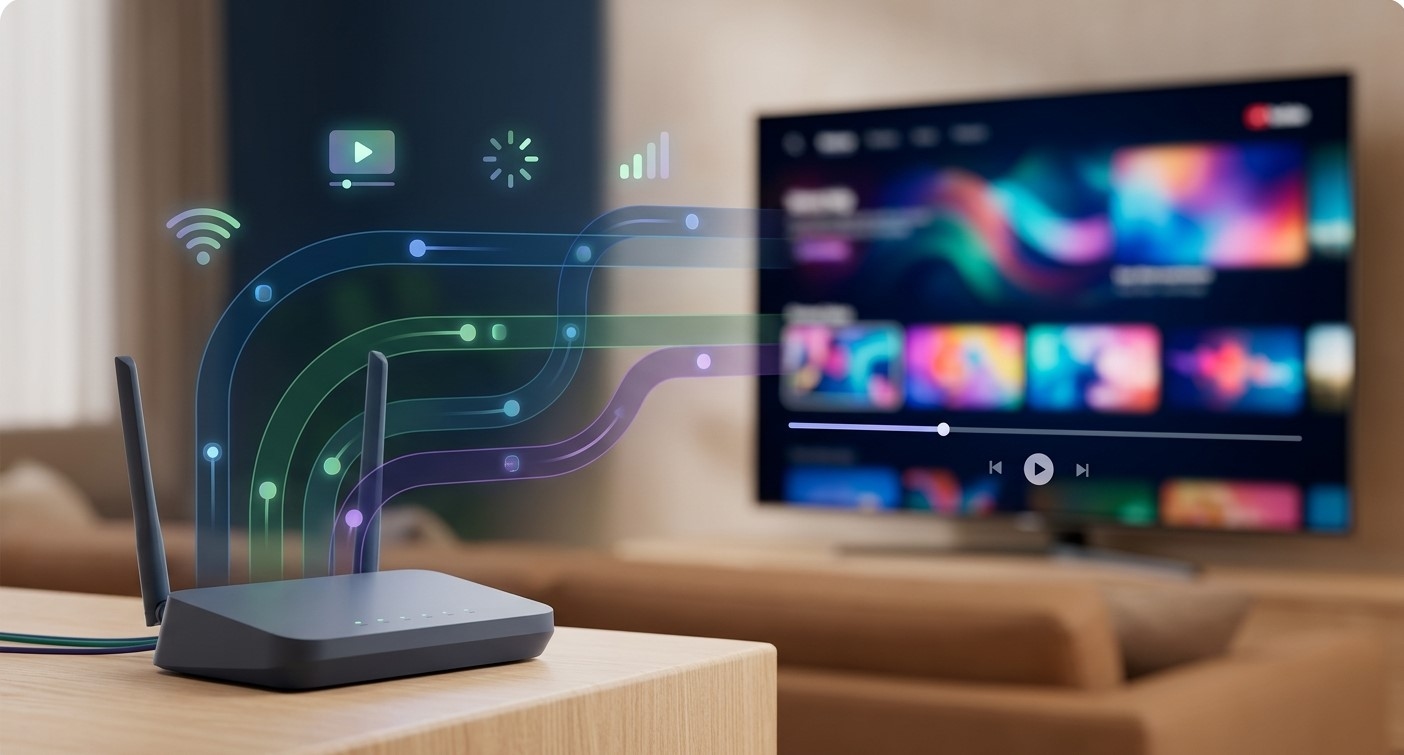
Your router quietly manages the internet connection for your television, phone, computer, and other connected devices. But when IPTV starts buffering, channels take too long to load, or video quality drops, you may wonder whether changing a few router settings could help.
The good news is that you don't need to be a networking expert to understand the basics. Learning which settings affect speed, Wi-Fi coverage, and security can help you troubleshoot common streaming problems. Whether you're exploring IPTV India or using an Indian IPTV Box, a properly configured router can help provide a more reliable viewing experience.
Table of Contents
How to Access Your Router Settings
Router Settings That Matter for Streaming
Settings You Usually Don't Need to Change
How to Troubleshoot IPTV Buffering
Frequently Asked Questions
Final Thoughts and CTA
1. How to Access Your Router Settings
Most routers have an administration page or mobile app where you can manage your network.
To get started:
Connect your phone or computer to your home network.
Open your router manufacturer's app or enter the router's administration address in a browser. Common addresses include
192.168.0.1and192.168.1.1, but yours may differ.Sign in using the administrator credentials.
Look for sections such as Wireless, Wi-Fi, Security, Connected Devices, or Advanced Settings.
Check the router label or manufacturer's instructions if you don't know the correct address. Change settings carefully, and take a screenshot or note of the original values before making adjustments.
2. Router Settings That Matter for Streaming
Wi-Fi Band: 2.4 GHz, 5 GHz, or 6 GHz
Your router may offer multiple Wi-Fi bands.
2.4 GHz: Often reaches farther and passes through walls better, but may experience more interference.
5 GHz: Can offer higher speeds over shorter distances, making it useful for nearby streaming devices.
6 GHz: Available on compatible Wi-Fi 6E or Wi-Fi 7 equipment and devices; it can provide additional capacity but generally works best within a suitable range.
Choose the band that provides the most stable signal where your TV is located. The newest band isn't automatically the best if the signal is weak.
Wi-Fi Channel
Nearby routers, wireless devices, and other sources of interference can affect Wi-Fi performance.
Many routers automatically select a channel. If your connection is unreliable, check whether your router offers automatic channel selection or a Wi-Fi analysis feature.
Changing channels may help in a crowded apartment building, but the best option depends on your local wireless environment and router capabilities.
Quality of Service (QoS)
Some routers include Quality of Service (QoS) settings that help prioritize traffic or devices.
Depending on the model, you might be able to prioritize your IPTV box or streaming traffic when several people are using the internet at once.
QoS features differ between manufacturers, and incorrect settings may reduce performance. Follow your router's instructions and test whether the change actually improves playback.
Guest Network
A guest network lets visitors connect to the internet without using your main Wi-Fi credentials. Some routers also allow you to isolate guest devices from other devices on your home network.
This is mainly a convenience and security feature rather than a direct streaming-speed improvement. Avoid connecting your IPTV box to a guest network if its isolation settings prevent it from reaching devices or services it needs.
Security and Wi-Fi Password
Choose WPA2-AES or WPA3 security where supported, and use a strong, unique Wi-Fi password. Keep your router's firmware updated and change default administrator credentials.
Security settings generally won't make your IPTV stream faster by themselves, but they help protect your home network from unauthorized access and avoid problems caused by unfamiliar devices using your connection.
Firmware Updates
Router manufacturers release firmware updates to address security issues, improve stability, and sometimes fix performance problems.
Check the manufacturer's app or administration page for updates. Use official update methods and avoid interrupting the router while an update is being installed.
Connected Devices
Your router may show which devices are connected and how much bandwidth they use.
If IPTV buffers during large downloads, game updates, or cloud backups, this list can help you identify possible network congestion. Pause unnecessary downloads or schedule them for later.
3. Settings You Usually Don't Need to Change
Some advanced options are best left alone unless you have a specific problem to solve.
DNS settings: DNS helps devices find online services. Changing DNS does not automatically increase streaming speed.
IPv6 settings: IPv6 is a modern internet protocol. Disabling it without a clear reason can cause connectivity issues.
Port forwarding: This is generally unnecessary for ordinary IPTV viewing and can expose services to additional security risks if configured incorrectly.
MTU settings: These affect packet size and usually should remain at their recommended defaults.
Firewall settings: Don't disable your router's firewall just to troubleshoot buffering.
If you change an advanced setting and the connection becomes worse, restore the original value.
4. How to Troubleshoot IPTV Buffering
Before changing several settings, work through these simple checks.
Test other devices: Check whether websites and other streaming services also struggle.
Compare Wi-Fi and Ethernet: If your IPTV box has an Ethernet port, connect it directly to the router to see whether playback improves.
Check router placement: Keep the router in an open, central location and away from obstructions where possible.
Pause heavy downloads: Temporarily stop large downloads, game updates, or cloud backups.
Restart equipment when needed: Follow the router manufacturer's instructions and allow the connection to return fully.
Check for updates: Install official updates for your router and streaming device.
Test one change at a time: This helps you identify which setting, if any, makes a difference.
If buffering continues on a wired connection while other online activities work normally, the issue could involve the IPTV application, provider, or specific stream rather than your Wi-Fi settings.
5. Frequently Asked Questions
Which router setting is most important for IPTV?
There is no single setting that works for everyone. Wi-Fi band, signal strength, channel selection, and QoS can matter, depending on your home network and router.
Should I enable QoS for IPTV streaming?
You can test it if your router supports it and multiple devices compete for bandwidth. Follow the manufacturer's guidance and keep the setting only if it improves performance.
Does changing DNS stop IPTV buffering?
Usually not if buffering is caused by weak Wi-Fi, insufficient bandwidth, or congestion. DNS changes may affect how quickly some services are located, but they don't create additional internet capacity.
Is 5 GHz better than 2.4 GHz for an Indian IPTV Box?
It can be faster at shorter distances, but 2.4 GHz may work better through walls or over longer distances. Test both bands if your device supports them.
Should I disable my router firewall for streaming?
No. Disabling the firewall is not a normal IPTV troubleshooting step and can reduce network security. Investigate the actual connection problem instead.
How often should I update my router?
Check periodically for official firmware updates and install security updates when available. Some routers support automatic updates.
6. Final Thoughts and CTA
Understanding your router's settings can make IPTV troubleshooting less confusing. Start with Wi-Fi coverage, band selection, channel conditions, connected devices, and firmware updates. Consider QoS only when your router supports it and network congestion is a likely cause.
Avoid changing advanced settings without a clear reason, and remember that buffering may originate from your internet provider or streaming service rather than the router itself.
Ready to improve your viewing setup? Visit IPTV India to explore IPTV information, or learn more about compatible devices on the Indian IPTV Box page. Pair suitable equipment with a stable internet connection and sensible router settings for a smoother streaming experience.