It can be a stressful situation to accidentally delete important files on your Mac, especially if you have already emptied the Trash. The real question is whether they can still recover those files. To get the knowledge of how a recovery tool works in such cases, we have gone through the Softaken Mac Data Recovery Software and its recovery process in detail.
Softaken Mac Data Recovery is used to recover deleted/lost documents, photos, videos, music, emails and other files from Mac storage & supported external drives. It supports APFS, HFS+, HFS and ExFAT file systems and is compatible with macOS 10.15 Catalina and later versions, including Sonoma. What Does Mac Data Recovery Provide?
The software offers multiple recovery sources, not just a traditional scan of a disk. These include APFS Snapshots, Time Machine, Trash, Notes, Photos, Mail, iCloud synced folders and Deep Scan. It also offers a preview option before the recovery, which allows users to preview files before saving them.
Some of the main features are:
APFS and other supported file system recovery
APFS Snapshot Restore
Restore with Time Machine
Garbage collection
RAW recovery & Deep Scan
Recovery from external HDDs, SSDs, USB drives and SD cards.
Preview data to be recovered
Selective Data Recovery
Apple Silicon and Intel Macs are supported
Device on-line processing
Install Mac Data Recovery Software
Don’t save any new files onto the affected drive before beginning recovery. New data can overwrite the space of deleted files, making it less likely to be recovered. Softaken also suggests to save the recovered files to another healthy location.
Step 1: Download the Software
Go to the official Softaken Mac Data Recovery product page and download the Mac installer.
The software is compiled as a Universal Binary application for Apple Silicon and Intel Macs. The system requirement is macOS 10.15 Catalina or later.
Step 2: Launch Installer.
Once you've downloaded the installer, find it in your downloads folder and open it.
Follow the instructions on screen to install macOS, allowing the app to install.
Step 3: Start Softaken Mac Data Recovery
Once installation is complete, launch the application from your Applications folder.
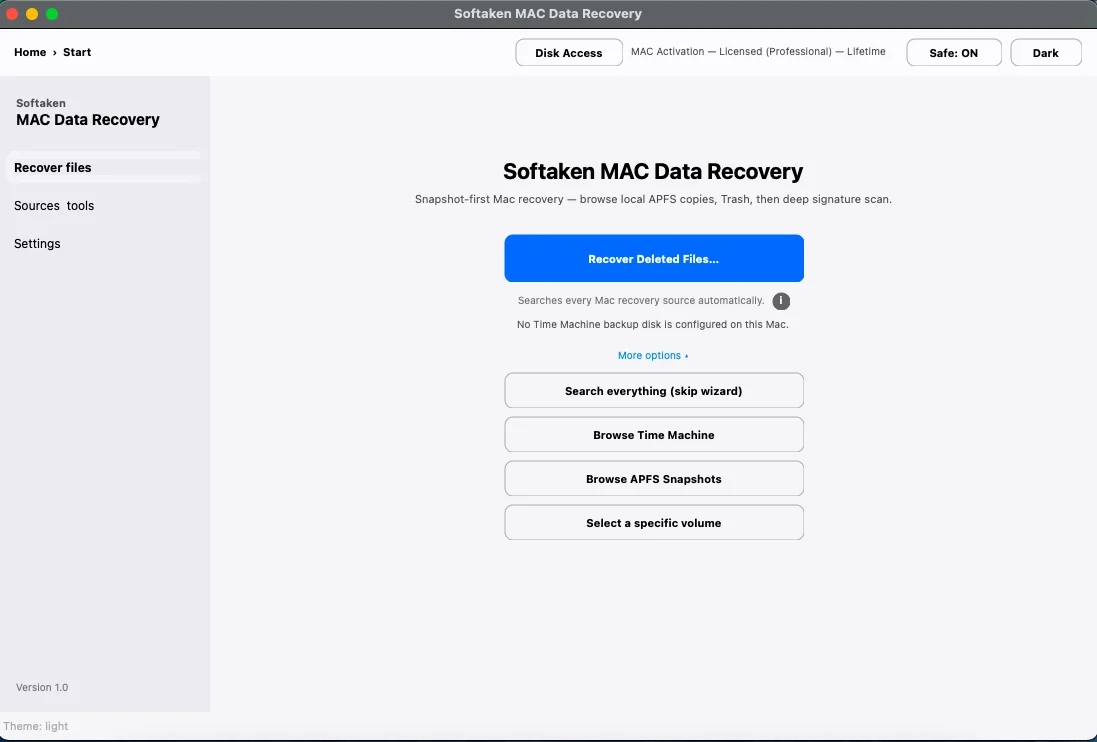
The main interface lets you select the available recovery sources and scan options.
How to Restore Deleted Files with Softaken
Step 4: Choose where to save the recovered data.
Choose the Mac drive, partition, or external storage device where the files were originally.
If the files were recently deleted, check the available recovery sources such as Trash or APFS Snapshots. This software is intended to integrate these sources in a single recovery workflow.
Step 5: Begin the Scan
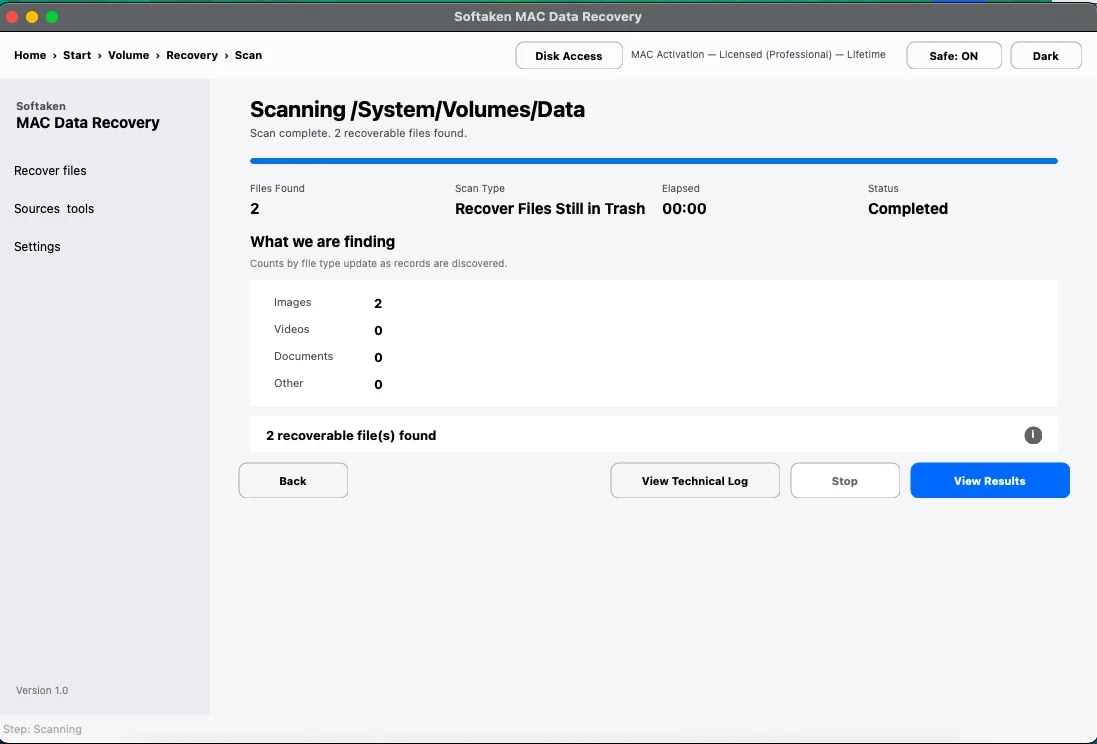
Choose the appropriate scanning option and start the scan.
If the recovery is difficult, you can use Deep Scan to search the storage more thoroughly by file signatures. The product page lists a variety of scan modes and signature based recovery options.
Step 6: Wait for the Scan to Finish
Scanning time will depend on storage capacity, drive condition and amount of data to be analyzed.
Do not interrupt the process unless it is necessary. The scan may take some time for large drives.
Step 7: See the results
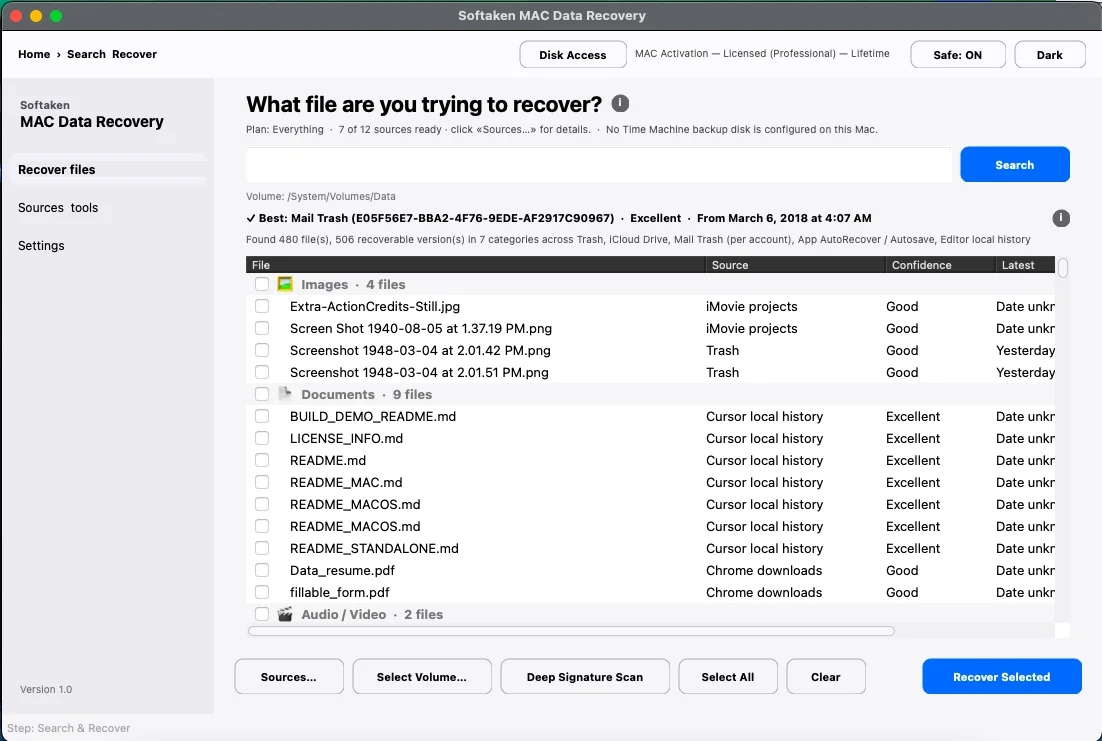
Scan and then view the recovered files.
Softaken offers an option to preview the users to check the file names and data present before the recovery. This is especially helpful as it enables you to identify the files that are worth restoring.
Step 8: Choose the desired files
Choose the files or folders to restore.
Selective recovery enables you to select what data to restore instead of all data.
Step 9. Change the Recovery Point
Choose a different storage location to save recovered files.
For example, if the files have been deleted from the internal Mac drive, always save the recovered data to an external drive. This prevents the retrieved data from overwriting potentially recoverable data.
Step 10: Get Your Files Back
Begin the recovery and let Softaken save the selected files to the destination of your choice.
Once the recovery process is over, open the destination folder to check the recovered files.
I mean, can it really recover files deleted permanently?
It is contingent upon how the files were deleted and what happened to the storage after that.
If the data has not been overwritten, recovery software might be able to find and restore it. Softaken offers recovery of deleted files from Trash and deep scan for hard cases.
There are, however, some instances in which files that have been permanently deleted cannot be retrieved. This is especially the case with modern internal SSDs, because macOS and SSD technology can use TRIM, which can make it difficult or impossible to recover data that was previously deleted.
itself warns that internal SSD recovery might be limited after permanent deletion because of TRIM, while external USB drives, SD cards and external SSDs might have a better potential for deep-scan recovery.
Recovering from Time Machine and APFS Snapshots
Another good thing with the software is that recovery does not have to rely on deep scanning only.
APFS Snapshots may have older versions or recently deleted data. Time Machine might offer another way to recover files. Softaken provides both the options in its recovery workflow.
That said, it’s worth checking any available snapshots or backups before you go straight into a deep scan.
Testing with our hands
The recovery workflow is pretty simple: select the location, scan the drive, preview the results, select the files needed and restore to another location.
Preview is especially helpful as users can preview the recoverable content before deciding what to restore. If a simple disk scan is not enough, users can also take advantage of multiple recovery sources .
At the same time, the expectations should be realistic. There’s no guaranty that any recovery application can recover all files that have been permanently deleted. Overwriting , SSD TRIM and serious filesystem issues can all affect the final result along with physical damage to the drive .
Pros
Supports APFS and many other file systems
APFS Snapshot and Time Machine restore included
Supports external storage devices.
Deep Scan & RAW recovery
Preview recoverable files
Apple Silicon and Intel Macs supported
Simple guided recovery workflow
Cons
Deleted data may be unrecoverable permanently
TRIM can affect the recovery of internal SSDs
Deep scan can take longer on large storage devices
The recovery should occur before that area of deleted space is overwritten with new data
Verdict
Mac Data Recovery provides a systematic way to recover deleted or lost files on Mac. The combination of APFS Snapshots, Time Machine, Trash recovery, Deep Scan, preview and selective recovery provides users with many ways to search for lost data.
But the key thing is that permanent deletion does not guaranty successful recovery. The better the conditions for recovery, the faster the recovery process is started and the less the affected storage is used later on.
enables users to scan and preview for free before recovering to ascertain if their deleted files can still be identified, according to the product page.
FAQ’s
1. Does Softaken recover files deleted from Mac trash?
It offers a source for Trash recovery and can locate deleted items provided the underlying data is still present.
2. It can recover permanently deleted files from SSD?
It might find recoverable data, but recovery from an internal SSD can be limited by TRIM and other storage behavior.
3. Can I use external drives with Softaken?
Yes. The software is able to restore data from external HDDs, SSDs, USB drives, SD cards and other supported storage formats that are compatible.
4. Can I see files before recovery?
Yes. The software also offers a preview of scan results before users save the selected files.