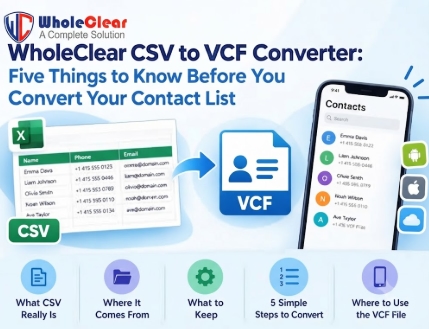
You export your contacts from Google, Outlook, or Thunderbird, and you get a file ending in .csv. You try to open it on your phone, and nothing useful happens. The names are there, the numbers are there, but your phone doesn't treat any of it as contacts.
This happens to almost everyone who switches phones or email apps. Instead of a long tutorial, this guide is a short checklist. It covers five things worth knowing before you convert, and shows where WholeClear CSV to VCF Converter fits in.
1. What a CSV File Really Is?
CSV is a comma separated values. It's a plain text table where each line is a contact, and the details such as name, phone number, email, etc are separated by commas.
CSV is so common, because almost every app can export to it. The downside is phones and address books don't use it for adding contacts. They like VCF, also called vCard, a kind of digital business card that any device can recognize.
2. Where Your CSV Came From?
You can export contacts from outlook, thunderbird, gmail, google contacts, ubuntu and many other places. They all call their columns a little differently. One app may refer to it as First Name, another Given Name.
A simple rename to .vcf never works, it’s those little differences. Each column has to match the correct contact field. The converter handles CSV data files from all these sources and has a mapping option for exactly this purpose.
3. Know What You Want to Keep
The tool stores information such as name, title, gender, birth date, company, phone, email, and websites. It does this without altering the original content of your file.
Take a minute to open up your CSV in a spreadsheet and have a look at it before you convert. Remove unnecessary rows, identify obvious duplicates, and keep a backup copy. Much less mess afterward and only takes five minutes.
4. Convert CSV to VCF in Five Steps
The WholeClear CSV to VCF Converter process has 5 steps. This guide follows the Windows version.
1. Just download and install the software and start your conversion.
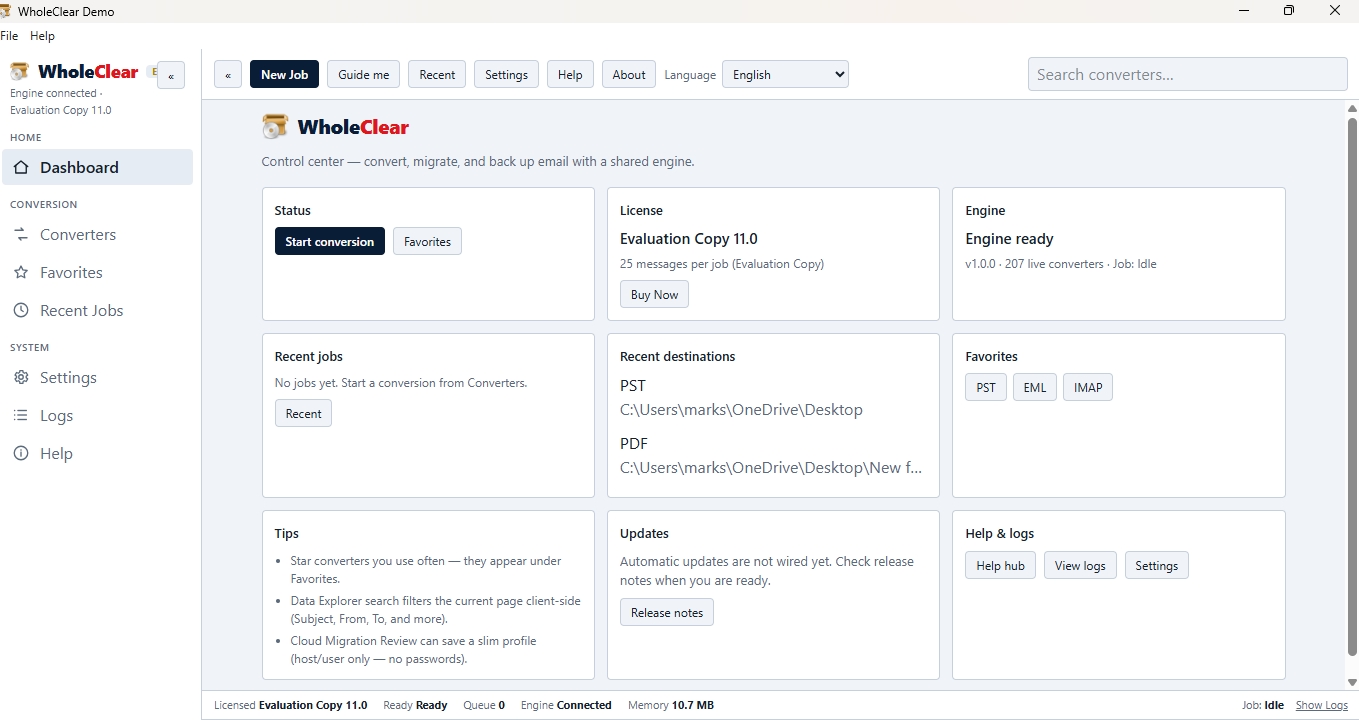
2. Click the Browse button to upload your CSV file in standard format.
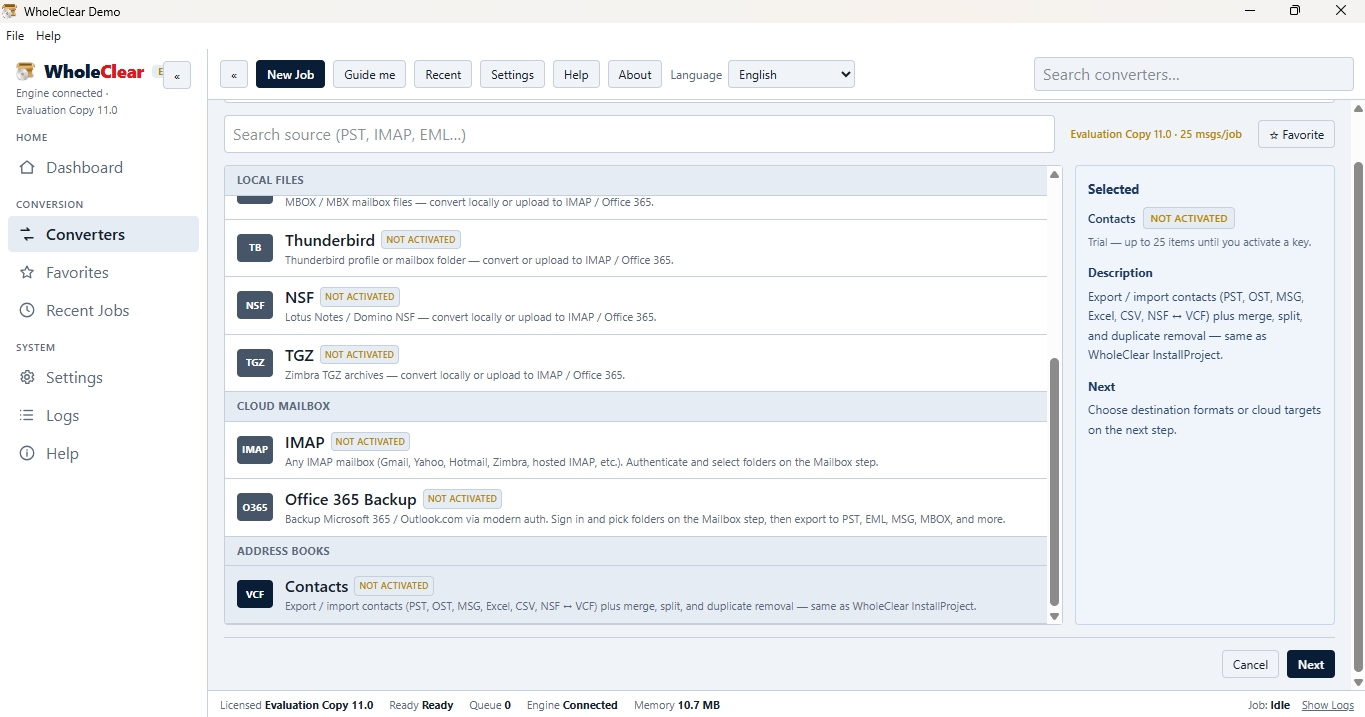
3. View your contacts, map the fields. The software automatically scans the file and shows a preview. Then each CSV field needs to be mapped to the corresponding vCard property.
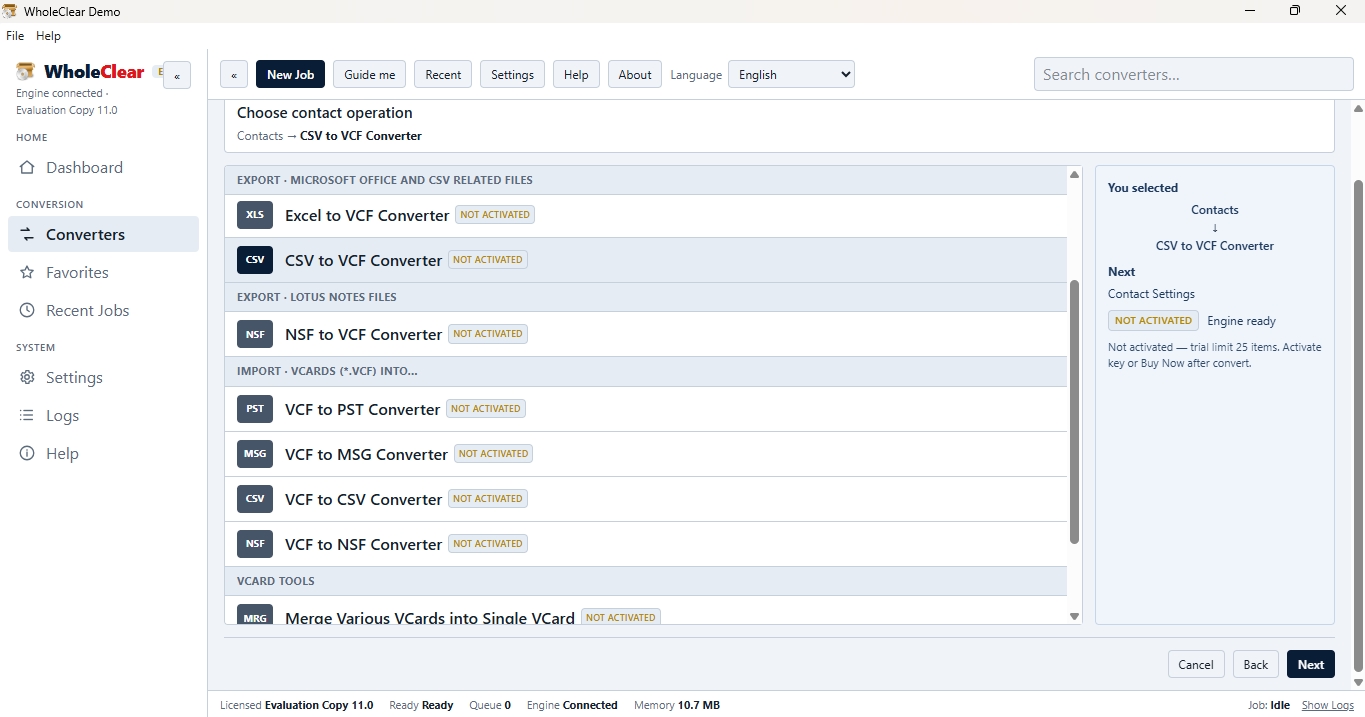
4. Select a location to save the VCF output.
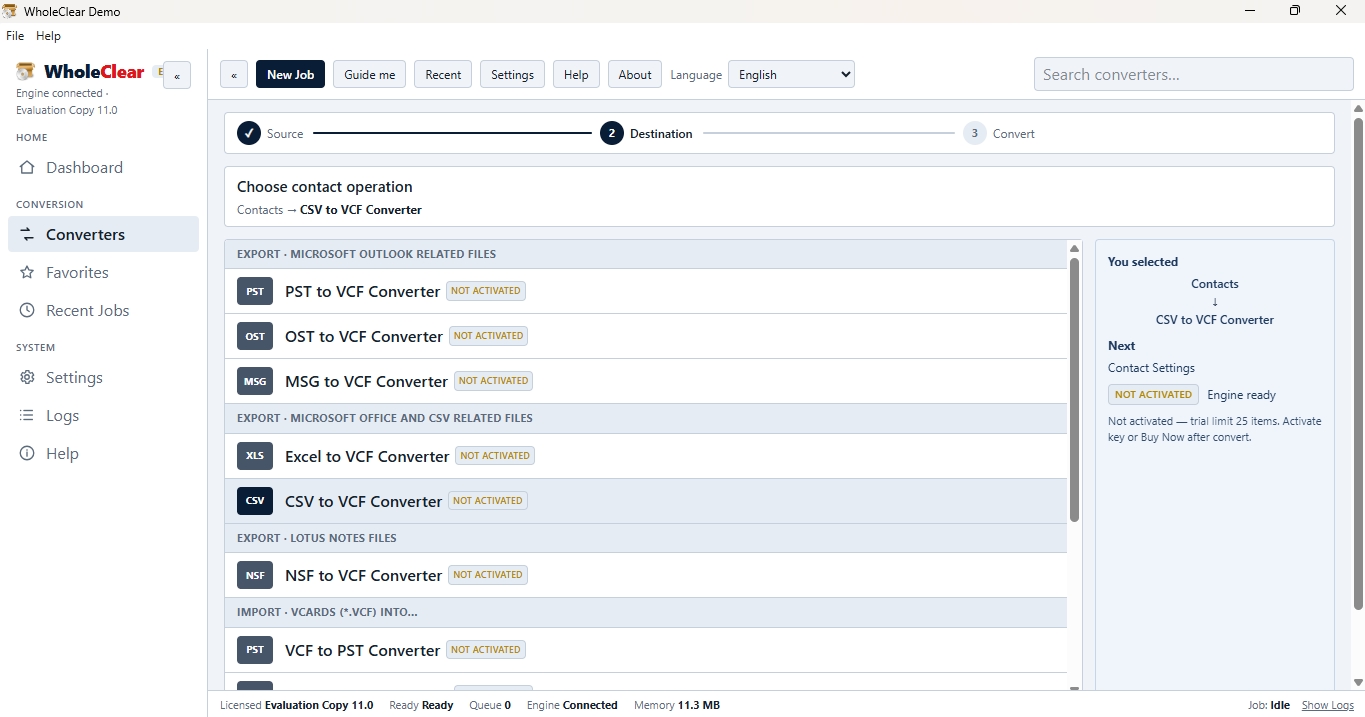
5. Choose Convert Now. The tool exports your contacts in VCF format.
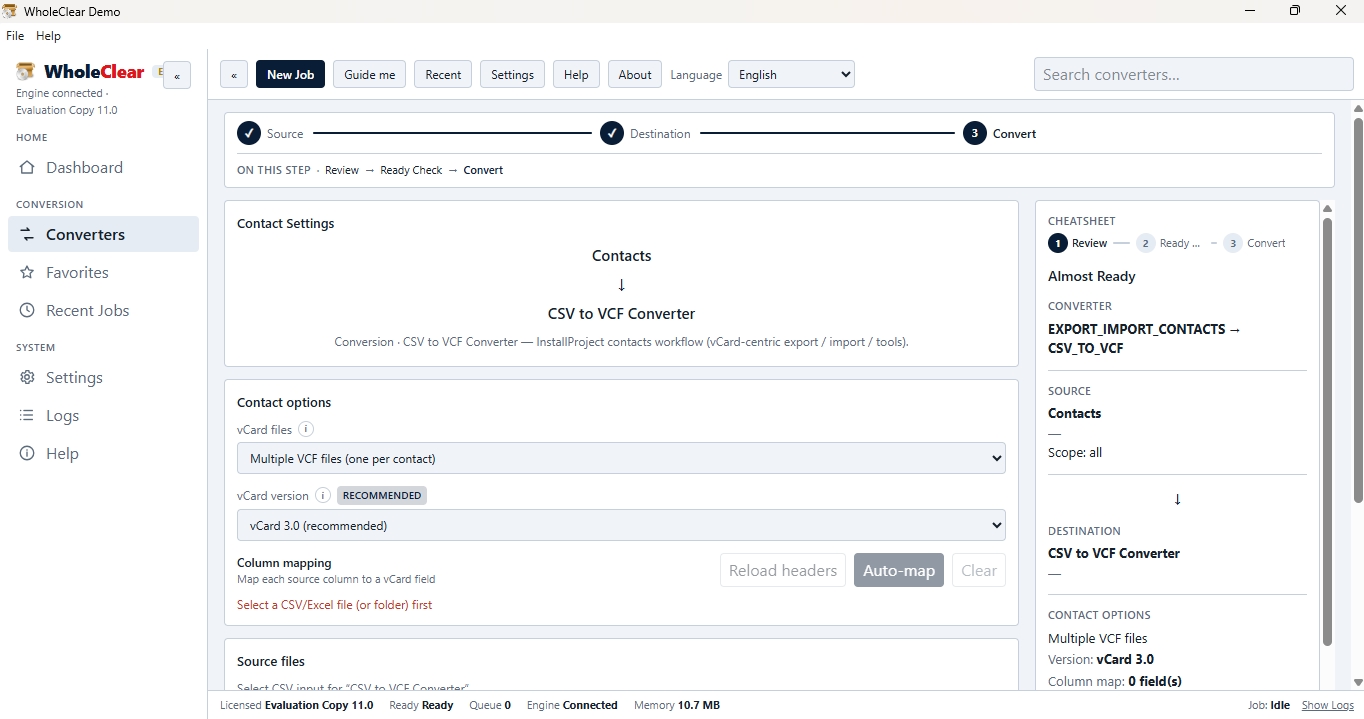
The preview in step 3 is worth a careful look. If a phone number sits under the wrong label there, it will sit under the wrong label on your phone too.
5. Know Where the VCF File Can Go
Once you get your contacts into the VCF format, they can be imported into Android phones, iPhones, iCloud and Mac Address Books. You can also import them into Mac Outlook.
The real names of the menu vary from device to device but the idea is the same. Upload the file to the device or login to the account, find the contacts import option and choose your file. Next, check a few contacts to make sure the names, numbers, and emails are in the right places.
Frequently Asked Questions
Can I convert a big CSV file?
Yeah. The tool converts CSV data files of any size and there is no limit on the number of contacts. A list of 1500+ contacts is no problem.
Do you need additional software installed?
No. The instrument is small and stand-alone. It does not rely on any external program for the conversion.
Will it work with CSV documents from other applications?
Yes. All CSV data files exported from Outlook, Thunderbird, Gmail, Ubuntu and other applications can be converted.
Will my contact details be changed when I convert?
No. The original content is unchanged. Details such as name, company, phone, email and websites are transferred across.
What versions of Windows and Outlook are supported?
Supports Windows 10 and Windows 11. 32 bit. 64 bit. Also supports Outlook editions like 2019, 2016, 2013 and 2010.
Can I import the converted file to Mac Outlook?
Yes. Once the conversion process is over, the VCF file can be imported in Mac Outlook.
Is there a free trial versions is available for this Software?
Yes. There is a demo version so you can try the results on a few contacts first. The full version has lifetime validity.
Conclusion
Moving contacts from a CSV file to a phone is mostly about preparation. Know what your file contains, check where it came from, map the fields carefully, and look at the preview before you convert.
If you'd like a simple way to do it, WholeClear CSV to VCF Converter can turn your CSV into VCF format in a few clicks, and the demo version lets you check the result first. A quick test with a few contacts now can save you from fixing hundreds later.