Introduction
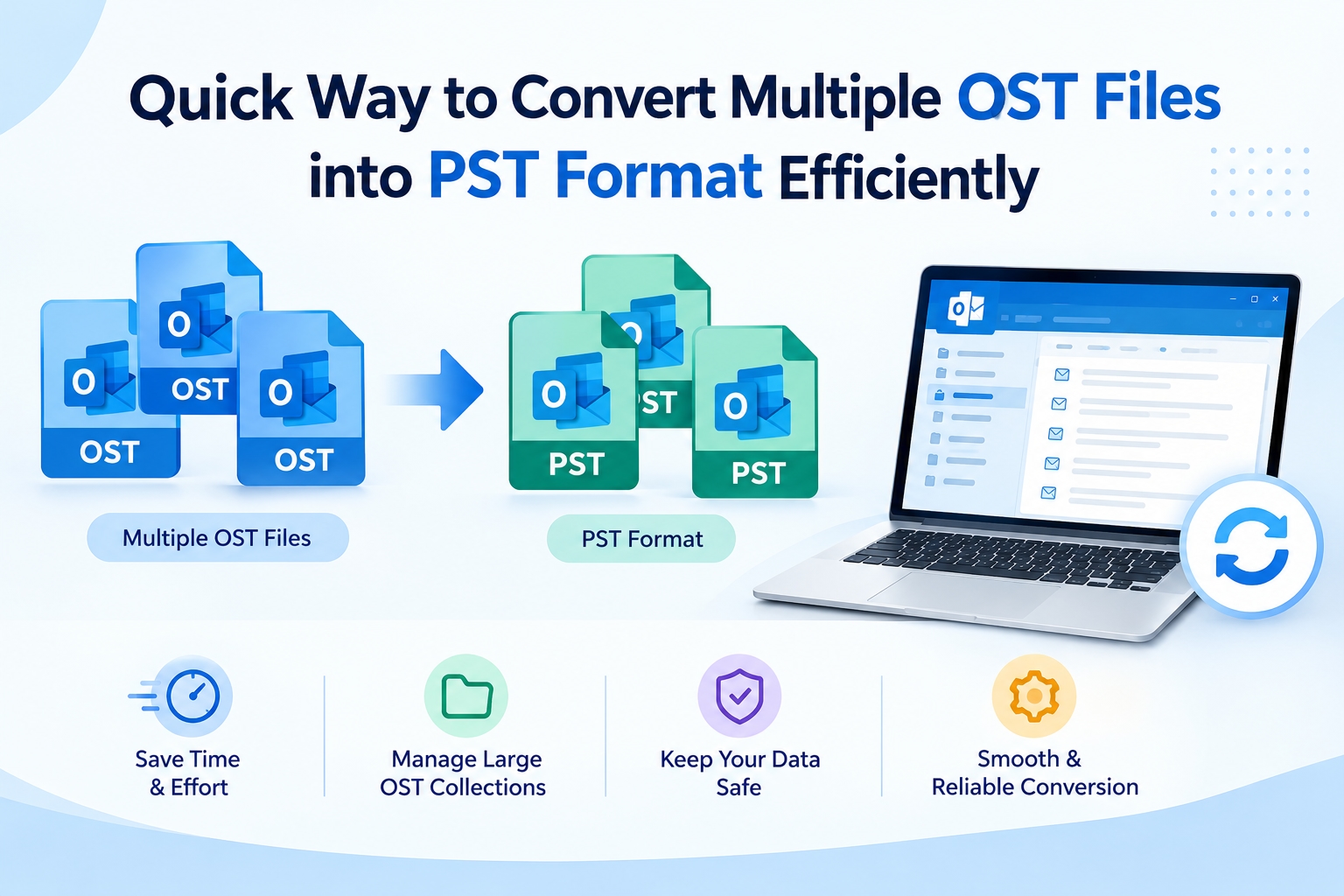
Microsoft Outlook stores synchronized mailbox data on a computer in OST (Offline Storage Table) files. With OST to PST conversion, users can back up their emails, transfer mailbox data, or organize data saved in several Outlook profiles. But multiple OST files should be managed appropriately to avoid storage problems and missing important emails. Selecting the right conversion procedure makes the whole process more organized and easy to follow.
Why Is It Important to Manage Multiple OST Files During Conversion?
Converting multiple OST files can quite often be associated with handling massive volumes of email data, attachments, and mailbox folders. If users manage these files appropriately, they can save time and keep their data organized. Before you start, check the size of each of the files, make a copy of the original data, and make sure you have enough free storage space. Simple file names and separate destination directory structures could also help to avoid confusion when working with several converted PST files.
How to Export Outlook Mailbox Data from OST to PST Manually
Microsoft Outlook has an export option that enables users to export mailbox data accessible to them in PST format. But this method normally functions using an existing Outlook profile rather than converting a bunch of separate OST files directly.
For each mailbox that you can access, do the following:
Open Microsoft Outlook and sign in to the relevant account.
Click File, and then click Open & Export.
Select Import/Export.
Choose Export to a file and click Next.
Select Outlook Data File (.pst).
Select the mailbox folder to export; include subfolders if needed.
Choose the destination folder and type in a file name.
Press Finish and wait for the export to finish.
Do a similar thing for all mailboxes that allow access. Verify the generated PST files.
Common Challenges of Manual OST File Conversion
When you have several mailboxes to export, the manual method can take a lot of time. It also requires access to the corresponding Outlook profiles and mailbox information. If the OST file is damaged, the original account cannot be accessed, or Outlook is not able to synchronize the mailbox, the usual export option will probably not be possible. Big mailboxes also take up a lot of storage space, so it is essential to plan carefully and verify.
Using an OST to PST Converter for Multiple Mailbox Files
If an integrated export function in Outlook is not suitable for you, a dedicated conversion tool might help. A person can consider using ViceVersa OST to PST Converter for handling OST files during the conversion. First, check the official program instruction manual and verify if the program supports multiple-file processing, standalone OST files, and the conditions that affect your files before choosing the software. Available functions differ per edition, so don’t assume all the choices are available. Check out the available functions.
Step-by-Step Process to Convert Multiple OST Files into PST
1.Install an appropriate converter for your Windows PC and OST files.
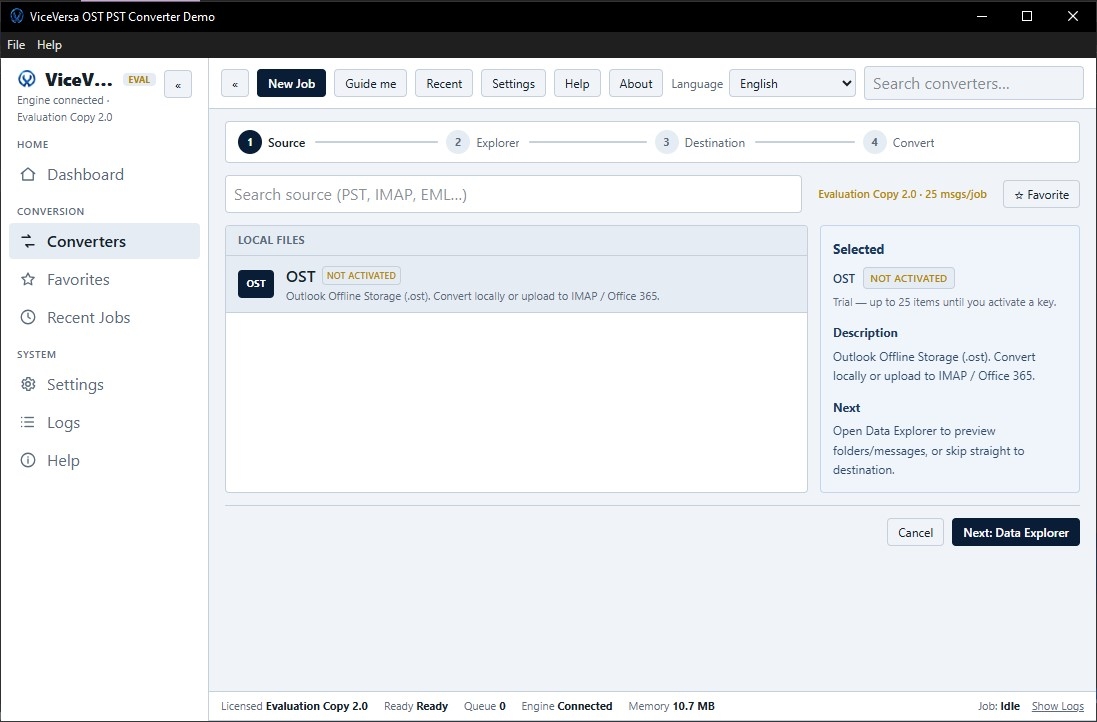
2.Run the program and select the OST file(s) that you wish to process (if it allows choosing more than one file).
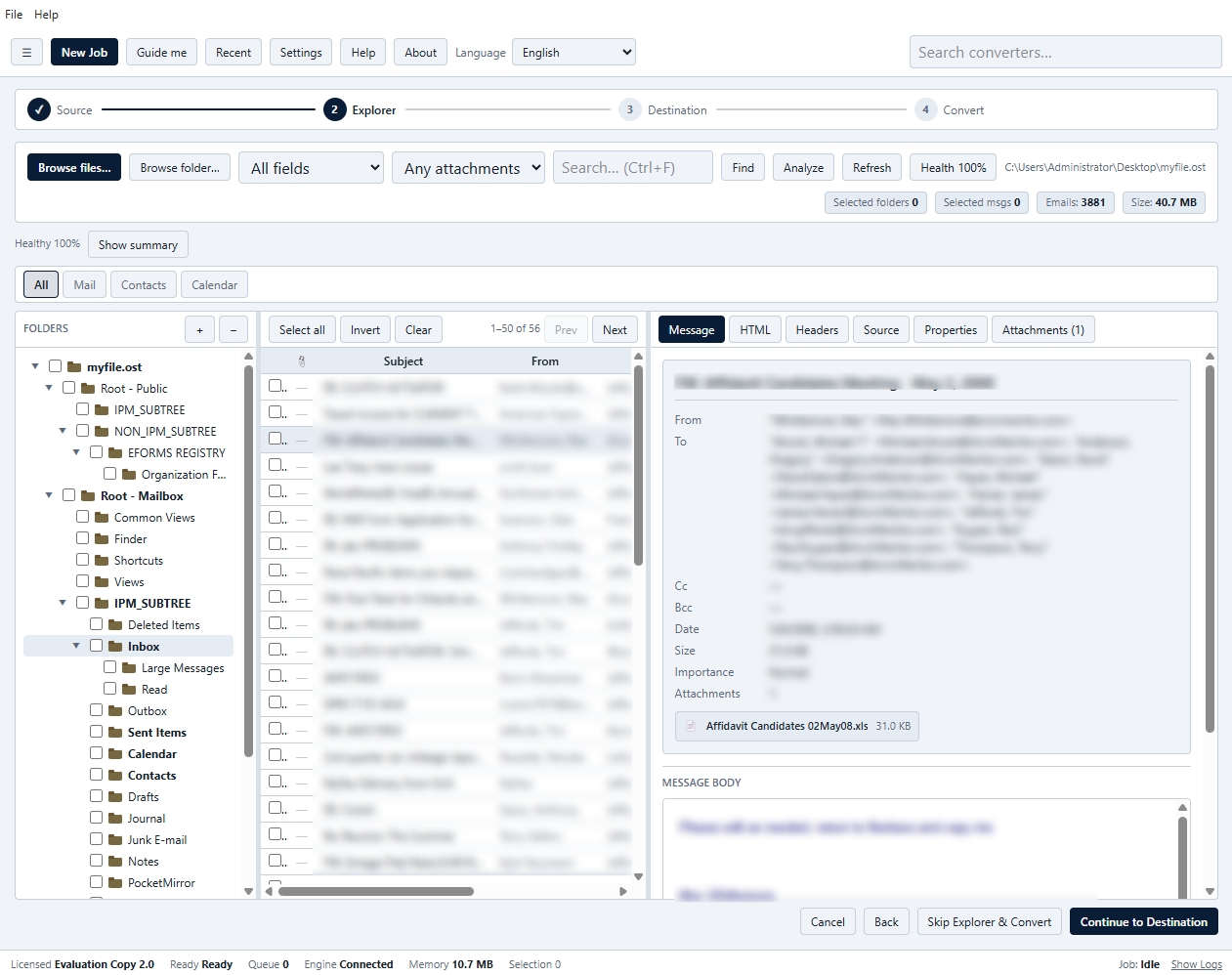
3.Scan or load the selected files with the choices offered.
4.If the tool has this option, then you can preview the mailbox data.
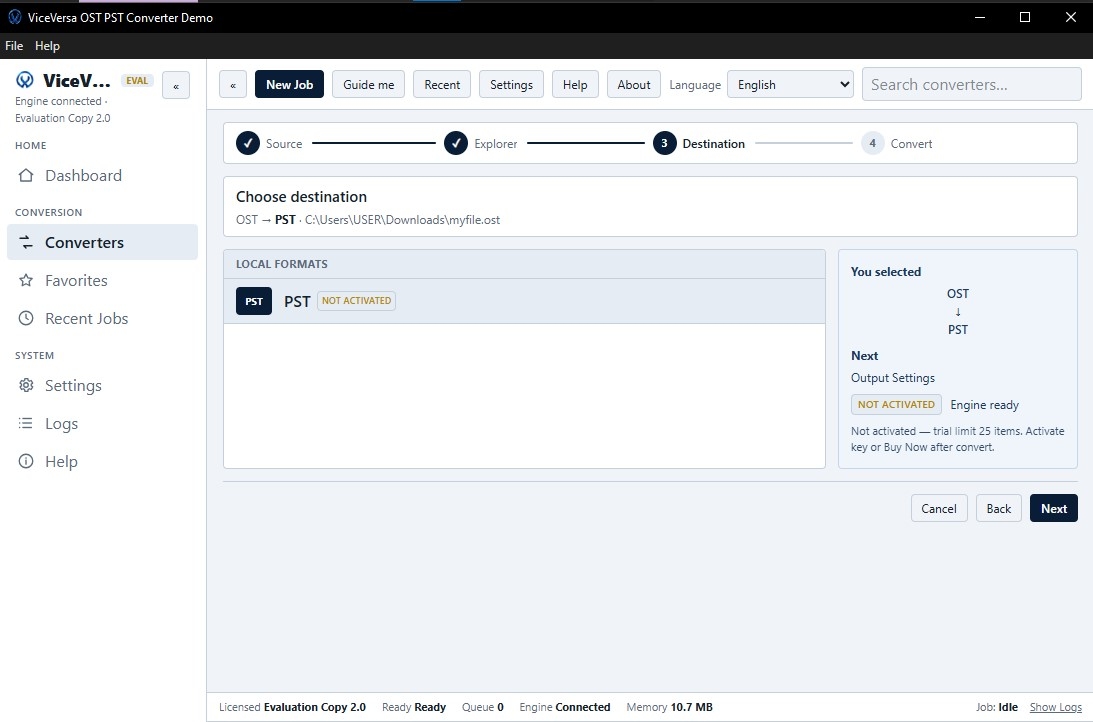
5.Change the output format to PST.
6.Select a destination folder that has available space.
7.Start the conversion process and let it complete.
8.Import the generated PST files into a compatible version of Outlook and check for key emails, folders, attachments, etc.
Do not modify original files until converted contents have been checked.
Conclusion
The proper process and organized files make it easier to handle multiple OST-to-PST conversions. Outlook's export ability works for available mailboxes, but for other supported file situations, a suitable professional converter is potentially useful. Always review the results and verify program compatibility before trusting the converted data.
Frequently Asked Questions About Multiple OST File Conversion
1. Can Outlook batch convert several OST files at the same time?
The export tool integrated into Outlook exports mailbox data through an accessible profile and often requires a separate export for each mailbox.
2. Is it possible to convert OST files without the original Outlook account?
The built-in export method usually needs to access the mailbox. If the OST file is compatible, a third-party utility might offer an alternative.
3. Why is the free space on a disk important?
The conversion can generate huge PST files, thus, appropriate storage space can prevent interruptions.
4. Should I have to delete the original OST files after conversion?
No. Keep them until you've validated the PST files and made a good backup.

