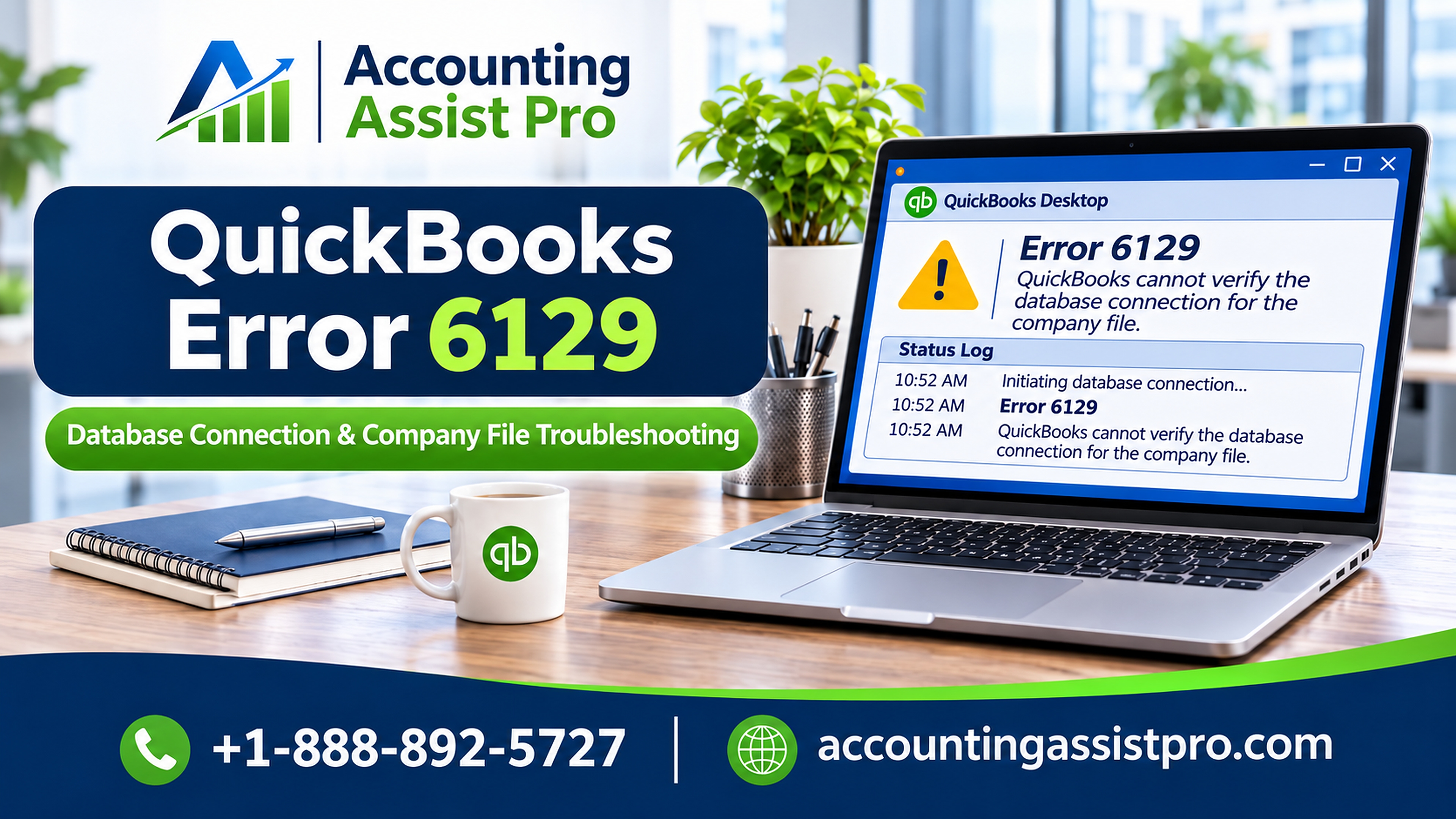
QuickBooks Error 6129 occurs when the software cannot establish a connection to the company file database. It may result from network issues, damaged files, or incorrect configuration settings. We have given top three simple fixes to resolve the error 6129 like a pro, so read the complete blog carefully.
Why Does You Get QuickBooks Desktop Error 6129 Message?
It is important to know what is wrong inside your system so read the given causes for Error 6129 in QuickBooks below:
Error 6129: Your server computer is on a Windows network domain than the workstation that is trying to open the file.
Error 6129: Corrupted.ND Files. The Network Data (.ND) file that QuickBooks uses to connect to your company file over a network has been damaged.
Error 6129: Permissions Blocked. A permission restriction on a folder, on the Windows firewall or on virus software is preventing QuickBooks from reading the database.
Error 6129: An unsupported QuickBooks Desktop version creates incompatibility problems for Windows.
Warning Signs You Are Dealing With Error 6129
Before the QuickBooks Desktop error code 6129 pops up on your system screen, your system usually drops a few hints, Read here:
Your QuickBooks crashes abruptly when you try to open, create, or upgrade a company file.
Your computer freezes for several seconds, mostly when you try to switch to multi-user mode.
Error message: "Database connection verification failure" pops up repeatedly, locking you out of your ledger.
Try Top Three Step-by-Step Fixes to Resolve QuickBooks error code 6129
Try these proven solutions in order, testing your company file after each step.
1. Rename the .ND and .TLG Files
Renumbering or renaming these configuration files forces QuickBooks to generate fresh, healthy versions automatically without touching your actual accounting data.
Firstly, go to your parent system and open the folder where your company file is stored and look for files sharing your company file's name with the extensions .QBW.ND and .QBW.TLG..
Once find, right-click each file, select Rename, and add .OLD to the very end (e.g., CompanyFile.qbw.nd.old).
To confirm the process, reopen your QuickBooks and try logging into your company file again.
2. Run QuickBooks File Doctor
If renaming files didn't clear the problem. So, download QuickBooks Tool Hub and install it if it is first time. Choose Company File Issues tab, and select Run QuickBooks File Doctor to find the issue.
Browse for your company file, choose Check your file and network, and enter your QuickBooks Admin password.
Let the scan finish—it often resolves stubborn QuickBooks company file errors in minutes.
3. Check Your Network Domain & Reinstall If Needed
Ensure that all workstations and your primary server are all on the same Windows domain or workgroup. If you've experienced the issue immediately after a failed upgrade, your local installation files may have become corrupted. Here, performing a clean install of QuickBooks Desktop will replace all critical program files with new ones that will register correctly with Windows.
How to Keep Error 6129 From Coming Back
When you get back to your books, spend five minutes doing this:
Update QuickBooks: Be sure to always use the most recent maintenance releases so your database managers stay consistent across computers.
Confirm that your Windows user group QBDataServiceUserXX is given Full Control permission to the folder where your company files are stored.
Standardize Your Network: Do not use both local Windows accounts and domain accounts on computers that contain QuickBooks data.
When To Contact for Expert Help
If you have walked through given troubleshooting steps and QuickBooks Error 6129 still refuses to resolve. Here we suggest don't force a risky manual repair. Reach out to an Accounting Assist Pro specialist at +1-888-892-5727 for fast, hands-on troubleshooting.