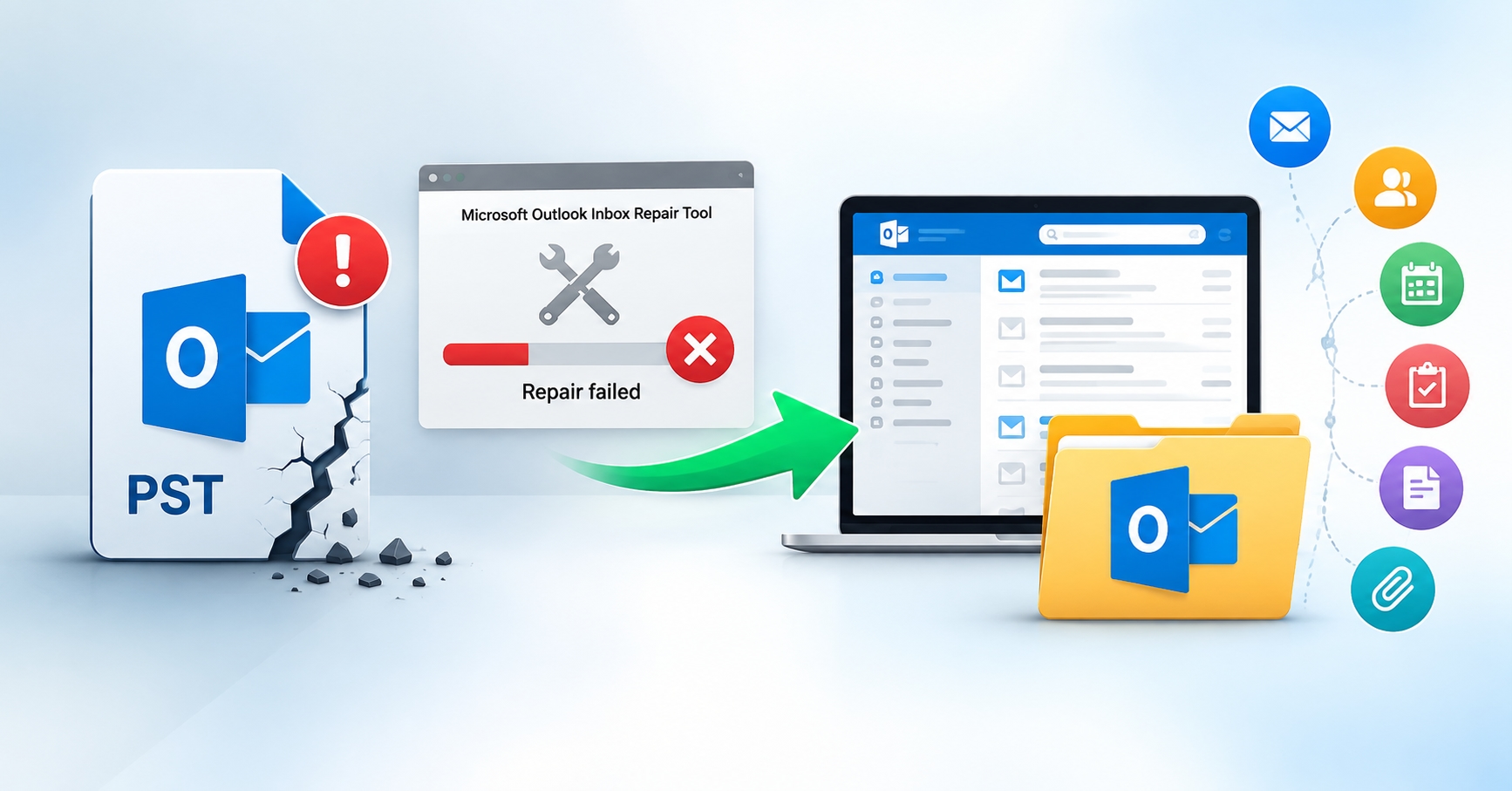
If ScanPST failed to repair corrupted Outlook PST files, you still have other options to recover your PST file data. You still can’t access a PST file even after ScanPST finishes, or some emails and folders may still be missing from the PST file. In this blog, you are going to learn how to repair corrupted Outlook PST files Without ScanPST using manual methods and professionals recommended solutions. You will also get to know what to do before trying another method, where manual repairing cannot meet your expectations, and how to access your complete Outlook data without risking the original PST.
Why Do PST Files Become Corrupted?
There are many reasons for PST file corruption such as, PST files can become unusable because of sudden shutdown, storage issues, interrupted file operations or other file level issues.
Common signs include:
Outlook is unable to open the PST file.
Some folders or items do not appear.
Outlook shows you a strange error while accessing the file.
Some content of PST open, but other data does not.
These symptoms make any user find the answer to repair corrupted Outlook PST files Without ScanPSt.
What Should You Check Before Repairing the PST?
Before beginning the procedure to repair corrupted Outlook PST files without ScanPST, you should create another copy of the original PST file and work on that copy.
In the classic Outlook to locate PST files, open File > Account Settings > Data Files. You have another option to use File > Open & Export > Open Outlook Data File to open an existing PST file.
How to Outlook Repair PST Files Without ScanPST?
The most practical approach for repairing a PST file manually is to create a new PST file and move the readable data into this one.
How Can You Recreate the PST File Manually?
You can recreate the PST file by moving readable data into a fresh PST file:
Create a new Outlook Data FIle (,pst).
Open your existing PST file in Outlook,
Now select the folders or items that still open.
Copy or simply move them into the new PST file.
Open again the new PST file, check and verify the saved data.
Microsoft lets you open a PST file, moving items between the PST files and Outlook folders, and importing PST items into another Outlook destination.
These steps are helpful for you to repair corrupted Outlook files without ScanPST when the source stays partly accessible. It is also a practical starting point for repairing corrupted PST files when you want to preserve data. It cannot recover data if Outlook is unable to access it, so repairing corrupted PST files still depends on how much data is accessible.
Why Recreation of PST File Can Disappoint You?
Manual steps of a repairing corrupted PST file only work with data Outlook can read. If the PST file doesn’t open, many folders stay empty, or important messages cannot load, a fresh PST file will simply copy an incomplete data set.
To repair corrupted Outlook PST files without ScanPSt, manual recreation approach is a data-salvage option.
How to Repair Corrupted PST Files Without ScanPST - Professional’s Approach
Professionals always recommend users to use a dedicated recovery software. A dedicated recovery tool is the best option you have. It fulfills all the limitations of ScanPST. This approach can repair corrupted Outlook files without ScanPST when Outlook is unable to read complete data. This tool offers features like Quick Scan, Advanced Scan, PST/BAK support, data preview and selective export options.
Now start the expert's approach, download SysTools Outlook Recovery Software on your Windows PC and follow these steps given below:
Step 1: Add the PST file: Add File and select the PST.
Step 2: Choose the scan mode: Select advance scan mode and click Add.
Step 3: Preview data: Open the required folders and review recovered data.
Step 4: Select the data: Mark the required items and click Export Selected.
Step 5: Save the Output: Choose PST, PDF, MSG, EML OR HTML file format in which you want. Now select a destination and click Export.
This is the simple and most reliable solution for your needs. This approach offers a complete solution in one place. It is a combination of data recovery, preview, selective saving and multiple file formats export options that makes the overall process easier and more convenient.
Why Professional’s Approach is The Best Alternative to ScanPST?
The main difference is accessible data for PST files repairing. A manual method depends on what Outlook can read, while dedicated software can scan PST file and lets you preview recoverable data before exporting it.
This Software approach is more convenient when the source is partly readable and your requirement is more than a just copy and move approach.
What Can You Do to Avoid Future PST Problems?
We recommend that you do the following to avoid facing the same problem again.
Keep a current backup
Close Outlook normally
Make sure to avoid unreliable storage
Always make a copy before major Outlook or system changes.
Frequently Asked Questions
Q1. Can I repair corrupted Outlook PSt files without ScanPST?
Ans: Yes, you can create a new PST file and move accessible data into it, but this doesn’t repair the original file’s internal structure, so this may not solve your issue. If you want a complete and easier solution go for the software method.
Q2. What to do when Outlook cannot open my PST file?
Ans: Manual recreation may not work because Outlook cannot read the source. You can consider a dedicated recovery application.
Q3: Does creating a new PST file recover every email?
Ans: No. The new PST file contains the data Outlook can access and copy from the original PST file.
Q4: Can this recovery software process a BAK file?
Ans: Yes. This software supports PST and BAK files. This also includes generated BAK files during ScanPST processing
Q5: Can I save only selected PST items?
Ans: Yes. This tool offers an Export Selected feature, so you can choose specific email items instead of exporting everything.