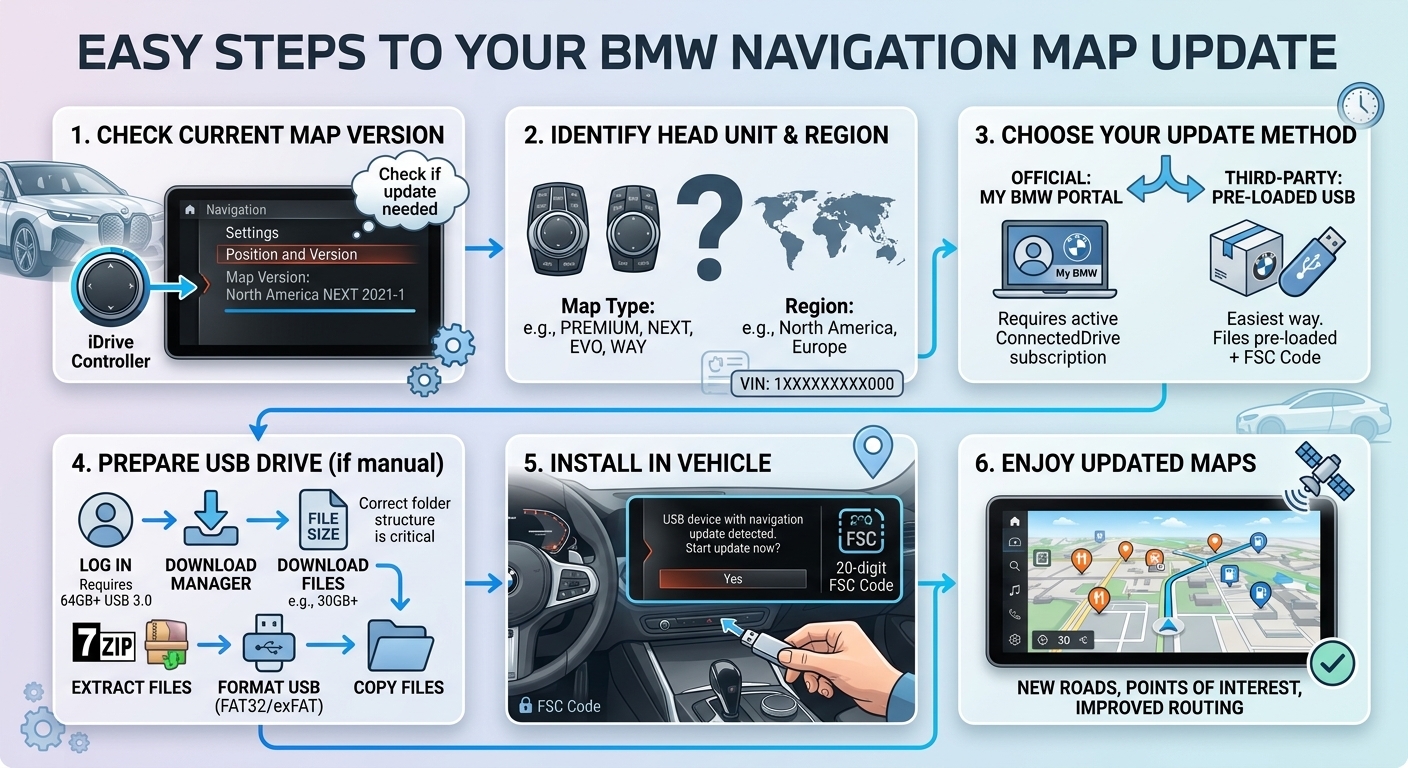
Updating the system may sound hard, but the process is often simple when you use the correct map files and follow the right steps. This guide explains compatibility, USB preparation, FSC codes, and installation in clear language. You will also learn how to avoid common errors and protect your BMW iDrive navigation system during the update.
Key Takeaways
A navigation update works best when you first identify your BMW head unit, current map version, and compatible map region. This prevents wasted time and installation errors.
Check the current BMW map version before downloading files.
Choose maps that match your BMW navigation system and region.
Use a reliable USB drive with enough free storage space.
Confirm whether your system needs an FSC activation code.
Keep the vehicle powered while the maps install.
These basic checks make the process safer and easier.
How to Get a BMW Navigation Map Update Easily
For detailed instructions, use this Bmw navigation map update guide to understand the manual process. First, confirm your navigation system and map type. BMW vehicles can use systems such as CIC, NBT, or NBT EVO, depending on the model and production year.
Next, obtain the correct regional files. Drivers in Pakistan should verify that the selected BMW navigation maps cover the roads and areas they need. Correct compatibility matters more than simply choosing the newest release.
How to Check Your BMW Map Version Before Updating
Start your BMW and open the navigation menu in iDrive. Look for settings, options, position and version, or navigation system information. The exact menu name can vary by iDrive generation.
Write down the map name, region, and version shown on the screen. This information helps you identify the right iDrive map update. Do not select files only by BMW model name. Two similar vehicles may have different navigation units because of their build dates, factory options, or previous upgrades.
What You Need for a Smooth BMW Navigation Update
Prepare everything before you begin. You will usually need compatible map data, suitable storage, and enough time for the installation. Some BMW systems may also request an FSC code before accepting new maps.
A compatible USB flash drive or required storage device
Correct BMW GPS maps for your navigation unit
An FSC code when required by the system
Stable vehicle power throughout the installation
Enough time to let the update finish without interruption
Always follow the requirements for your specific iDrive version because the process can differ.
How to Install BMW Map Files With a USB Drive
Download the correct files from a legitimate source and follow the instructions supplied for your navigation system. If the update uses USB storage, prepare the drive in the format required by your BMW system. Place the files in the correct location rather than changing their folder structure.
Then insert the USB drive into the supported vehicle port. The navigation unit may detect the BMW map data automatically. Follow the iDrive prompts. If an FSC code appears, enter the valid code that matches your vehicle and map release.
Why BMW FSC Codes Matter During Map Installation
An FSC code acts as an authorization key on BMW navigation systems that require one. It helps the system confirm that the map update can be installed for that vehicle. Not every update follows the same activation process.
Therefore, identify your head unit before buying or generating any code. An incorrect code may fail even when the map files are correct. For better results, match the code to the VIN, navigation unit, map family, and release when required. Never rely on a random activation code found online.
How to Avoid Common BMW Map Update Problems
Most update problems come from incompatible files, poor USB preparation, interrupted power, or the wrong map region. Check each item before starting instead of troubleshooting halfway through installation.
Do not remove the USB device while the system reads or installs map data. Also, avoid switching off the vehicle when the update requires continuous power. If iDrive cannot detect the files, check the storage format and folder structure first. Recheck your BMW navigation system version before downloading a different map package.
Where to Find the Right BMW Maps for Pakistan
Map coverage can vary by navigation generation, map family, vehicle specification, and region. As a result, Pakistani BMW owners should check the listed coverage before paying for or installing an update.
Look for clear information about supported countries, BMW head units, map release dates, and activation requirements. Avoid assuming that a map package covers Pakistan simply because it has a broad regional name. If you need technical help, use a provider that can verify compatibility from your vehicle details before installation begins.
Conclusion
A current BMW navigation system can give you newer road data and a smoother built in navigation experience. Start by checking your existing map version. Then verify compatibility, prepare your USB device, and confirm whether your system needs an FSC code.
Bimmercore provides information and services for BMW owners who want help with navigation updates and other BMW technology. Whether you update the maps yourself or use professional support, always choose files made for your exact navigation unit. Careful preparation can prevent common installation errors.
FAQs
How do I know if my BMW navigation needs an update?
Check the map version in your BMW iDrive navigation settings. Compare the displayed release with a newer compatible version. An update may help if local roads, exits, routes, or points of interest are missing from your current BMW GPS navigation data.
Can I update BMW navigation maps using a USB drive?
Many BMW navigation systems support map installation through compatible USB storage, but the method depends on the head unit. Use the correct files, storage format, and folder structure. Some systems also require a valid FSC code before installation can continue.
How long does a BMW navigation map update take?
Installation time depends on the BMW navigation unit, map package size, and storage device. Large updates can take significant time. Keep stable vehicle power during the process and follow the on screen instructions until iDrive confirms that installation has finished.
Do BMW map updates require an FSC activation code?
Some BMW navigation systems require an FSC activation code, while others may use a different authorization method. Check your specific iDrive generation, vehicle details, and map package first. If required, the code must be compatible with the relevant vehicle and update.
Why is my BMW not detecting the map update USB?
The USB may use the wrong format, contain an incorrect folder structure, or hold incompatible map files. Check the USB requirements for your BMW head unit. Then verify the map family, region, and file placement before trying the navigation update again.