It should be easy to switch from HCL/IBM Lotus Notes email client to MBOX-compatible email clients like Thunderbird, Apple Mail, or Entourage. But unexpected conversion roadblocks—frozen progress bars, greyed-out action buttons, surprise error pop-ups, etc.—can bring your workflow to a screeching halt.
If you face any problems in the middle of email migration, this quick troubleshooting guide will help you to fix common errors and convert your files using DataVare NSF to MBOX Converter.
Reasons Behind NSF to MBOX Conversion Failure
Before proceeding to the fixes, it is good to know the causes of Lotus Notes database conversion failure:
Strict security controls: Local NSF files are secured with user-ID passwords or Access Control List (ACL) controls.
Corrupted/Orphaned Files: Corrupt database headers or Orphaned.ini configuration files caused by abrupt system shutdowns.
Wrong File Path & Permissions: Trying to access files in system directories with limited rights or with ‘Read-Only’ status.
System Environment Misconfigurations: Running the conversion utility without administrator rights or an active Lotus Notes process, which locks the database file in the background.
Troubleshooting: Step-by-Step Solutions
Fix 1: Run App as an Administrator
Sometimes the system permissions will not permit third-party tools to write output files to disk.
Right-click the DataVare NSF to MBOX Converter Icon on the desktop.
Select Run as Administrator to get full system rights.
Fix 2: Clear File Attributes & Check Path Accessibility
External drives might have permission restrictions, or network latency may stall conversion tools.
Keep your NSF file on a local drive (preferably C: or D:), not a network share or external drive.
Right-click on the NSF file and select Properties, and uncheck the Read-only attribute if checked.
Fix 3: Turn off Encryption & Kill Background Tasks
Files are locked in use by Lotus Notes, and databases are also tightly bound to active sessions.
Check out local ID authentication and clear encryption restrictions if your source file has any.
Launch Task Manager and make sure that any notes.exe processes running are fully killed so that you can release the file locks.
Fix 4: Scan and Select Clean Data Utility
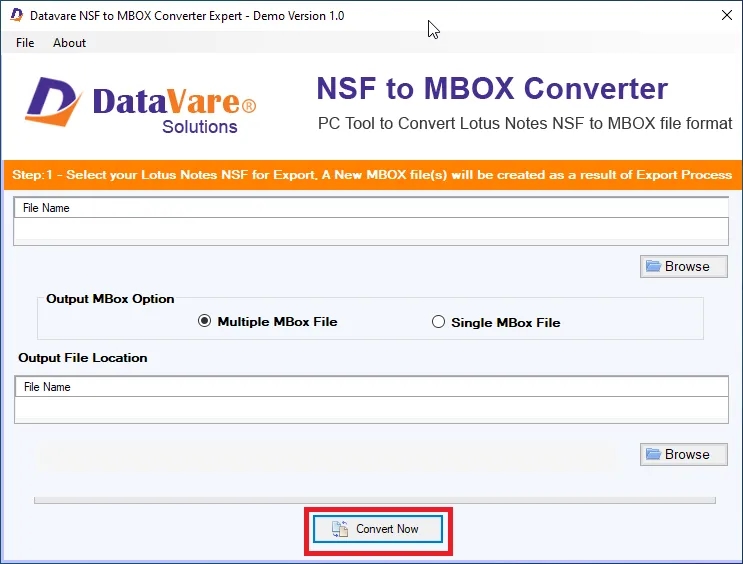
Open DataVare Converter and again upload your NSF file from the Browse option.
Check the preview of the folder structure and deselect the items that are not readable and/or not required to start the process.
DataVare NSF to MBOX Converter: A Guide For Smooth Conversion
Once any system roadblocks have been cleared, you may proceed as follows for a clean conversion:
Download & Install DataVare NSF to MBOX Converter as Admin
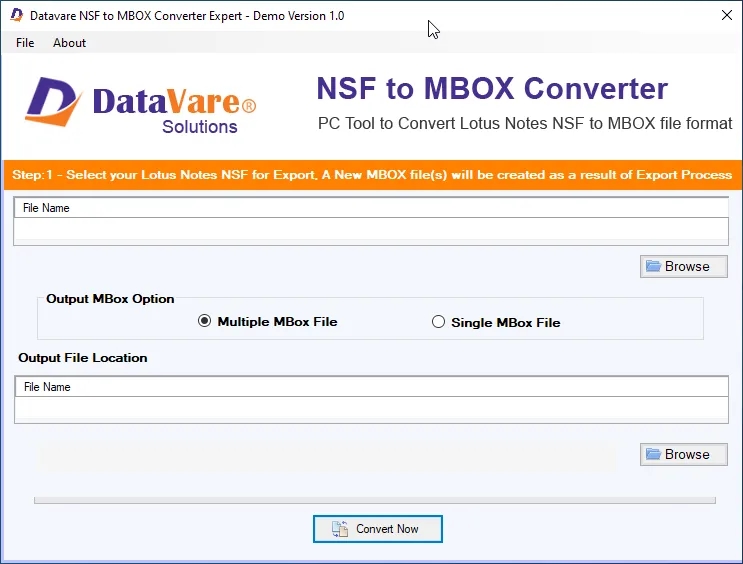
Upload Source File: Click on Choose File / Folder, then find your .data NSF file
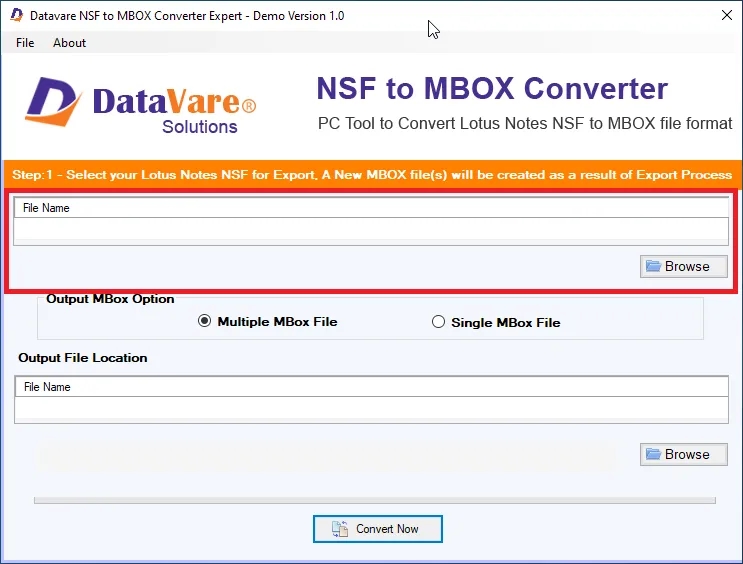
Select Format: Select MBOX as your desired export format.
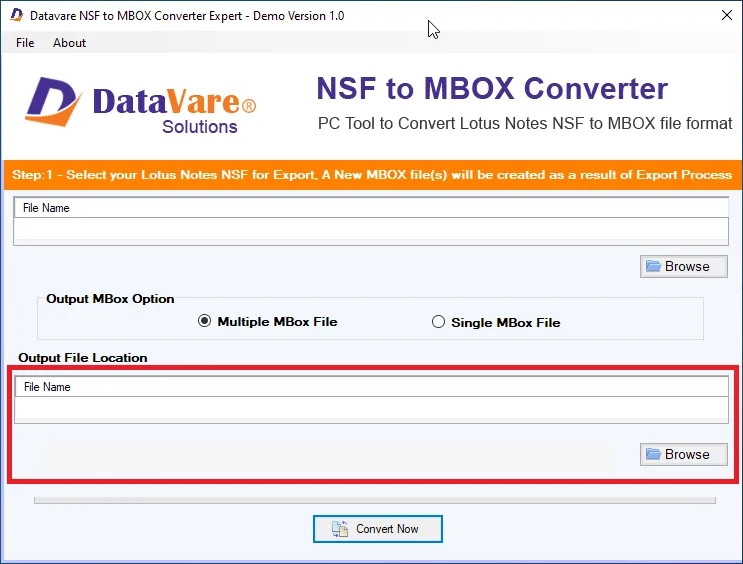
Convert: Press Convert Now to complete the migration safely
Pro Tips for a Smooth Transition
Always retain a second local copy of the original. Remember to save the NSF file before you start any conversion operations.
Use short file names and avoid special characters in folder directory paths to prevent errors with path lengths.
Test small batches of folder items first when working with large or bloated NSF databases.
Abstract
Most of the NSF conversion failures can be fixed by fixing path permissions, admin rights, and locks by background processes. Here are some simple troubleshooting steps that you can follow along with some specialised tools like DataVare NSF to MBOX Converter to make sure that all the meta-properties, attachments,s and complex folder structure are completely intact during your migration.
Frequently Asked Questions ( FAQ's )
Q: Why is my NSF file giving an error or not converting?
Cause: No admin rights, strict file permissions, or an active Lotus Notes background process that is locking the database file.
Solution: Close Lotus Notes completely using Task Manager and then right-click the conversion utility and select Run as Administrator.
Q. Do I need to install Lotus Notes for NSF to MBOX conversion?
Requirement: You should have a Lotus Notes environment configured on your machine so that the utility can read the underlying database hierarchy correctly.
Q. How can I open an NSF file that is password-protected or encrypted?
Steps: First, you need to load the database in the software and remove the local security restrictions with your main Lotus Notes ID profile.
Q. Does it keep email safe with attachments, formatting, and folder structure?
Data Integrity: Yes. The conversion software preserves complete folder hierarchy, email properties (To, From, CC, BCC, Date stamps), and embedded attachments.
Q. The software hangs on large files. What must I do?
Tip: Save output files to a local drive instead of an external or network location and ensure that your system drive has plenty of free space.