
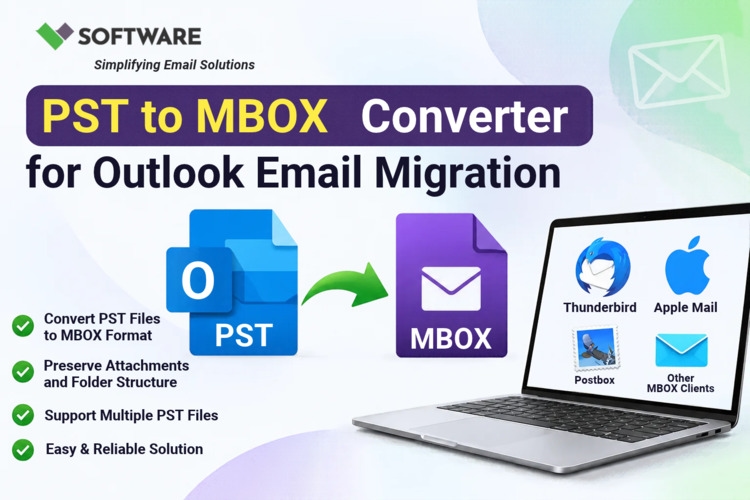
An old Outlook archive can contain correspondence you still need: invoices, customer discussions, project decisions, or family messages. The difficulty appears when you move to an email application that cannot open PST files directly. Converting the archive to MBOX provides a way to transfer those emails into a compatible environment.
To move Old PST Files to MBOX successfully, you need to preserve the source, choose a suitable conversion method, and check the imported messages. Older archives deserve particular attention because their format, condition, and character encoding can affect the results.
Understand what the conversion includes
A PST file can contain emails, attachments, contacts, calendar entries, tasks, and folders. MBOX stores email messages together in a mailbox file.
This difference matters when planning your migration. Converting email folders to MBOX does not automatically transfer your address book or calendar. Export those separately into formats supported by the destination application, such as CSV for contacts or ICS for calendar entries.
Folder organization also needs attention. A converter may create one MBOX file per email folder, with directories representing the original hierarchy. Confirm how the output is organized before processing the entire archive.
Check the age and condition of your PST
Microsoft documents two PST formats: ANSI and Unicode. Older Outlook archives may use ANSI, while later archives commonly use Unicode. Choose software that explicitly supports your source file format. Microsoft Learn
If Outlook is available, try opening the archive and inspecting several folders. Look for missing messages, unreadable text, or errors when opening attachments. Record any existing problems so you can distinguish them from conversion issues later.
A file that opens successfully is a useful starting point, but it does not prove every stored item is healthy. Sample messages from different years and folders.
Preserve an untouched source copy
Close Outlook before copying the PST. Save an untouched backup separately, then use another copy for conversion.
Avoid repairing, compacting, or reorganising your only copy. If a conversion fails or produces unexpected results, the original gives you a reliable starting point for another attempt.
Create a destination folder with enough free space for exported messages and temporary processing files. Use descriptive names, such as Outlook-Archive-2014-2018, rather than leaving several unrelated exports under similar default filenames.
Keep notes identifying the source file, its size, and the conversion date.
Choose a method that fits your setup
A dedicated converter is useful when you need standalone MBOX files or do not have a working Outlook installation. Check its requirements carefully: some products process PST files independently, while others depend on Outlook components.
If Thunderbird is your destination and Outlook is installed, its Outlook import workflow may offer another route. Mozilla explains that Thunderbird relies on Outlook for this import; possessing a PST file alone is insufficient. This imports Outlook data rather than necessarily producing separate MBOX files ready for distribution. Thunderbird Help
Choose the method according to the output you actually need.
Evaluate a converter with a representative sample
Before paying for software, test an evaluation version against a small but varied selection. Include an older plain-text email, an HTML message, an attachment, and correspondence containing accented or non-English characters.
Check whether the preview displays message content correctly. Confirm support for nested folders and review any trial restrictions, such as limits on exported messages.
Look for a processing report that identifies skipped or failed items. A completion notification is less useful if it does not explain whether anything was omitted.
Conversion speed matters, but readable output and clear reporting matter more.
Convert PST to MBOX step by step
1. Load the working PST copy
Open the converter and select your copied archive. Allow the initial scan to finish before choosing folders. Larger files may take longer to enumerate.
2. Review the folder list
Compare the detected folders with your expectations. Inspect Inbox, Sent Items, and custom archive folders. Check nested folders individually if the selection behavior is unclear.
3. Select the required email data
For a complete migration, include every relevant email folder. For a partial transfer, apply date or folder filters carefully. Record the filters so you can explain differences in message counts later.
4. Choose MBOX output
Select MBOX and specify a separate destination. Check whether the converter creates individual mailbox files, preserves folder paths, or offers an output option for your intended email application.
5. Export and review the report
Start the conversion and keep the computer powered throughout processing. When it finishes, inspect warnings and failures before beginning the import. Retain the report alongside your migration notes.
Import the converted files
The import procedure depends on the receiving application. Follow instructions for its current version rather than assuming every MBOX-compatible program uses the same steps.
In Apple Mail, choose File → Import Mailboxes, select the appropriate MBOX option, and locate the exported files. Apple documents importing messages exported in MBOX format from other email applications. Apple Support (IE)
For Thunderbird, verify the available MBOX import method and any extension requirements for your installed version. Import a small mailbox first, preferably into a clearly named local folder, before transferring the full collection.
Verify messages before retiring the archive
Compare source and destination message counts folder by folder where practical. Investigate differences instead of assuming they indicate loss: filters, duplicate handling, or excluded item types may explain them.
Open messages from the earliest and latest expected dates. Check sender details, recipients, subject lines, body formatting, and attachments. Test searches using a few known names or phrases.
Embedded pictures require separate attention from attached files. Images downloaded from external websites may remain unavailable even when the email itself converted correctly.
If text appears corrupted, review the converter’s encoding options and repeat a small sample. If messages are missing, recheck folder selections, trial limits, and error reports before rerunning the archive.
Keep the original PST until the imported collection has been checked and backed up. A verified MBOX export, supported by the source archive and conversion report, gives you a practical record of what moved and what still needs attention.