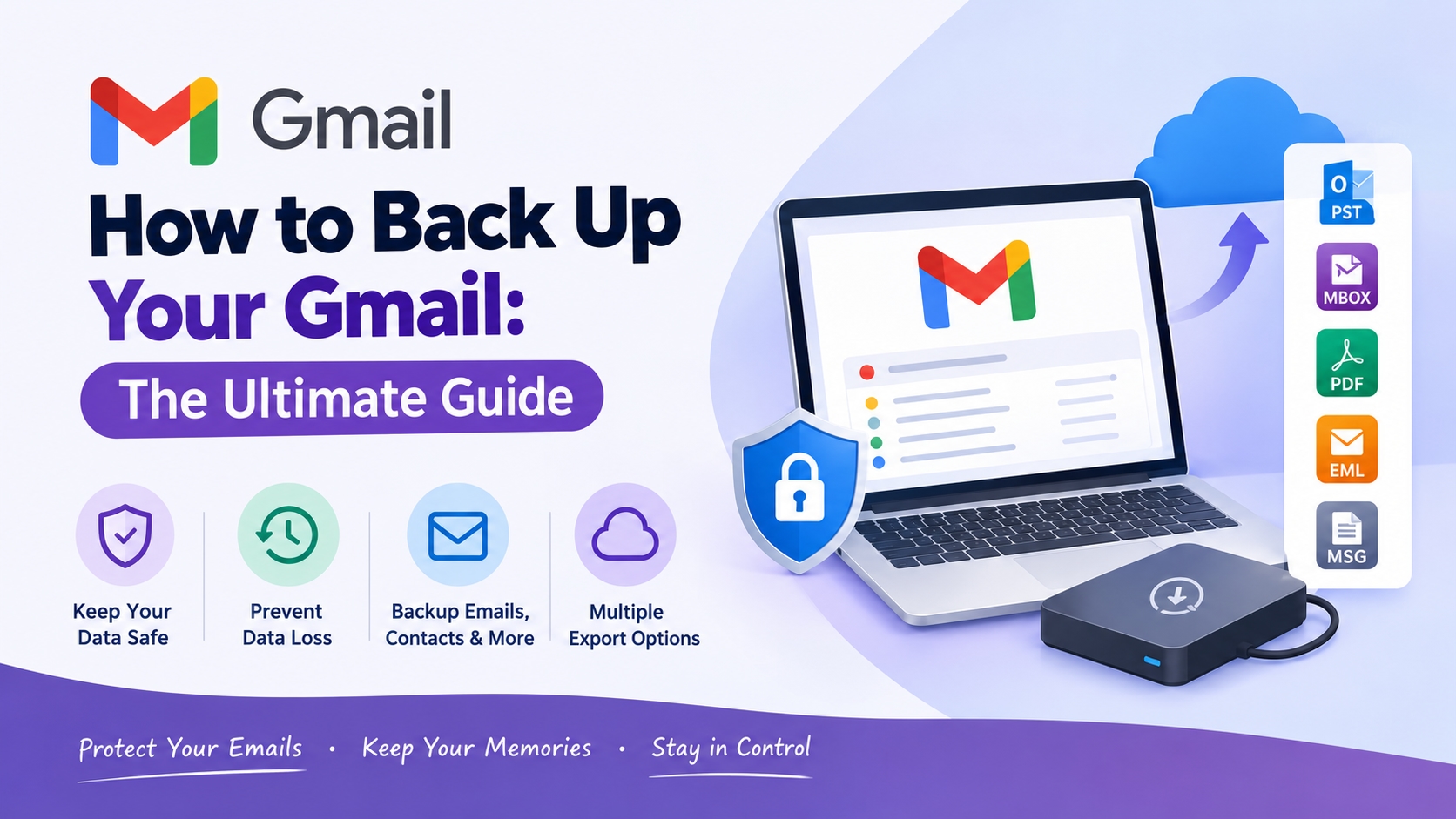
Your Gmail account probably contains years of crucial information i.e., professional conversations, bills, travel bookings, passwords, and personal memories. But now what if your account gets hacked or suspended, or you accidentally delete emails? A lot of people don’t fully understand the importance of a Gmail backup until they lose something important.
The good thing is, backingup gmail emails and their data nowadays is easy task once you have the right approach. In this article, we are going to discuss the importance of Gmail backup, go through the best methods for backing up your account, and demonstrate how a dedicated software solution can significantly speed up and secure the process. So, let's begin
Why Should You Back Up Your Gmail Account?
Google's servers are reliable and dependable, but that doesn't necessarily mean your data is safe. Emails can be lost for all sorts of reasons, and a backup gives you control of your own data.
When you accidentally delete your important data
Hackers can erase or lock you out of your mailbox.
Google may shut down accounts that seem violate its policies.
Free accounts come with 15 GB, so you might need to delete some old emails to free up space.
Backups are useful if you're switching to a new email provider, or leaving an organization.
Businesses often must keep email records for years for legal and compliance needs
How to Backup Gmail Mail
There are mainly 2 main methods to back up your Gmail messages. Each option has its own advantages and disadvantages.
Method 1: Through Google Takeout
Google Takeout is a free service provided by Google for exporting your data, such as Gmail.
Open Google Takeout and log in.
Click on “Deselect all” and then click on Mail.
Select the labels you want to keep.
Pick a file type, delivery method, and size.
Now click “Create export” and wait to receive the download link.
Limitations: The exports may take hours or even days for large mailboxes. The data comes in MBOX format which is not easily accessible without a compatible email client. You also need to manually repeat the process whenever you want a new backup.
Method 2: Backup Gmail with a MailsDaddy Automated Tool
Automated software might also be worth checking out for quicker and more dependable backups, as it can make the process easier and less likely to miss important files. To handle such scenario’s, One of the finest choice is the MailsDaddy Gmail Backup Tool. This automated application makes sure your Gmail data is safely backed up to your system, without any loss of data. It also allows for the backup of data in different formats like PST, MBOX, MSG, EML, PDF and so on.
Why Use MailsDaddy Gmail Backup Tool?
MailsDaddy is designed for both personal and business users, with a straightforward process for saving Gmail data. Key features include:
- An easy-to-follow interface that doesn’t require technical expertise.
- The ability to back up emails, attachments, and folder structure together.
- Export options such as PST, MBOX, MSG, EML, and PDF, so you can use your emails with different applications.
- The option to select specific emails or folders rather than back up the entire account.
- Support for handling larger mailboxes more efficiently than manual approaches.
- A process designed to preserve the organization and integrity of your email.
Instead of waiting for Google Takeout or resolving IMAP issues, you can begin a backup in just a few steps.
How to Back Up Gmail Using the MailsDaddy Tool
Follow the steps below to create a secure backup of your gmail email:
Download and install the tool from the official MailsDaddy page.
Open the software and login with your Gmail credentials.
Select the mailbox folders you wish to backup.
Select your output format and destination folder on your computer or external drive.
Click Start and let the tool finish saving your emails.
After the process is finished, you will have a local safe copy of your Gmail data which you can open at any time, even without an internet connection.
Best Practices for Gmail Backup
Taking a backup once is good, but following a few habits keeps your data protected for the long term.
Follow the 3-2-1 i.e; keep three copies of your data, on two different types of storage, with one copy stored offsite or in the cloud.
Back up regularly because monthly backups work well for most users, and weekly is better for business accounts.
Store at least one copy away from your main computer you can use external drive
Keep files in a secure location and use strong passwords.
Open a few files now and then to make sure they work.
Conclusion
Your Gmail account is more than just an inbox. It is a record of your professional work and personal life, and it deserves safety and security. While Google Takeout can work efficiently for small or one-time needs, it has disadvantages; it is often slow and limited. A dedicated solution like the MailsDaddy Gmail Email Backup Tool gives you a faster, simpler, and more dependable way to keep your emails safe. Don't wait for a problem to happen. Start backing up your Gmail today and enjoy peace of mind.
FAQ
Q: Can I save all my Gmail emails to an external hard drive?
Ans: Yes, you can save Gmail emails to an external hard drive by using a gmail backup tool such as MailsDaddy Gmail Backup Tool. It helps backup Gmail emails with attachments and folders in formats like PST, MBOX, EML, and MSG. You can then save the backup directly to an external drive.
Q: How do I keep Gmail emails forever?
Ans: To keep important Gmail emails for long-term access, create a local gmail backup instead of relying only on your online mailbox. MailsDaddy Gmail Backup Tool can export Gmail email to local PC/drive in multiple formats. This provides an additional copy for archiving.
Q: Why are people ditching Gmail?
Ans: Some users move away from Gmail because of privacy concerns, advertising preferences, storage limitations, or a desire for another email experience. Before switching, it is useful to backup Gmail using a gmail backup utility such as MailsDaddy. This helps preserve important emails during migration.
Q: What is the best replacement for Gmail?
Ans: The best replacement depends on your needs, such as privacy, business features, storage, and integration. If you plan to migrate from Gmail, first use a gmail email backup tool to preserve important messages. MailsDaddy can help backup Gmail emails before moving to another email provider.
Q: How do I access my backup Gmail account?
Ans: If by backup account you mean a separate account containing your backed-up emails, sign in to that account normally and access the available messages. If your emails were exported locally, use the appropriate email application or supported format to open them. A gmail backup tool such as MailsDaddy can help create such local backups.
Q: Where is Gmail backup stored?
Ans: Gmail backup location depends on the method you use. With MailsDaddy Gmail Backup Tool, you can choose a local destination such as your computer or external hard drive. This makes it easy to export Gmail email to local PC/drive and maintain an offline copy.
Q: Can I get my old Gmail back?
Ans: If the old emails still exist in your Gmail account, you can usually find them using Gmail's search and folder options. For future protection, use a gmail backup tool to backup Gmail emails locally. MailsDaddy can save emails and attachments in formats such as PST, MBOX, EML, MSG, and PDF.
Q: How far back does Gmail keep emails?
Ans: Gmail does not normally remove emails simply because they are old, provided they remain in the account and are not deleted. For extra protection of older messages, you can use a gmail backup utility such as MailsDaddy to create a local gmail backup. This helps preserve important historical emails.
Q: How do I retrieve 5 year old emails from Gmail?
Ans: Use Gmail's search options to locate messages from five years ago by date, sender, subject, or keywords. If the emails are still available, you can preserve them using a gmail backup tool. MailsDaddy can backup Gmail emails and export them to formats such as PST, MBOX, EML, and PDF.
Q: Why are people ditching Gmail?
Ans: People may leave Gmail because of privacy preferences, storage concerns, changing business requirements, or simply wanting a different email service. Before switching providers, it is wise to create a gmail backup. MailsDaddy can help backup Gmail emails and preserve them for migration.
Q: What is the most hacked email provider?
Ans: There is no reliable single answer because reported incidents vary by year, attack type, and measurement method. Rather than focusing only on the provider, users should protect accounts with strong passwords and two-factor authentication. Keeping a separate gmail backup with a gmail backup tool can also protect important email data from accidental loss.
Q: Why is Google closing Gmail accounts?
Ans: Google may disable or close accounts for reasons such as prolonged inactivity, policy violations, security concerns, or other account-related issues. If your Gmail contains important data, creating a regular gmail backup is a sensible precaution. MailsDaddy Gmail Backup Tool can help backup Gmail emails and store a local copy for future access.